
Introduction: Why Visual Collaboration Has Become Non-Negotiable
Think about your last brainstorming session over a video call. Was someone talking while everyone else tried to keep up mentally? Were ideas scattered across chat messages and screen shares? That friction is exactly what modern visual collaboration tools are built to eliminate — and Zoom Whiteboard sits right at the center of that solution for millions of remote and hybrid teams.
Zoom isn't just a video conferencing platform anymore. With Zoom Whiteboard's infinite digital canvas and the AI-powered Zoom Canvas workspace, the platform has evolved into a full productivity suite that keeps your team's ideas, plans, and documents in one connected place.
This guide covers everything you need to know — from how Zoom Whiteboard works in a live meeting to how Zoom Canvas turns post-meeting chaos into structured documentation — with honest comparisons, pricing breakdowns, and practical tips to get the most from both tools.
What Is Zoom Whiteboard? (And Why Teams Love It)
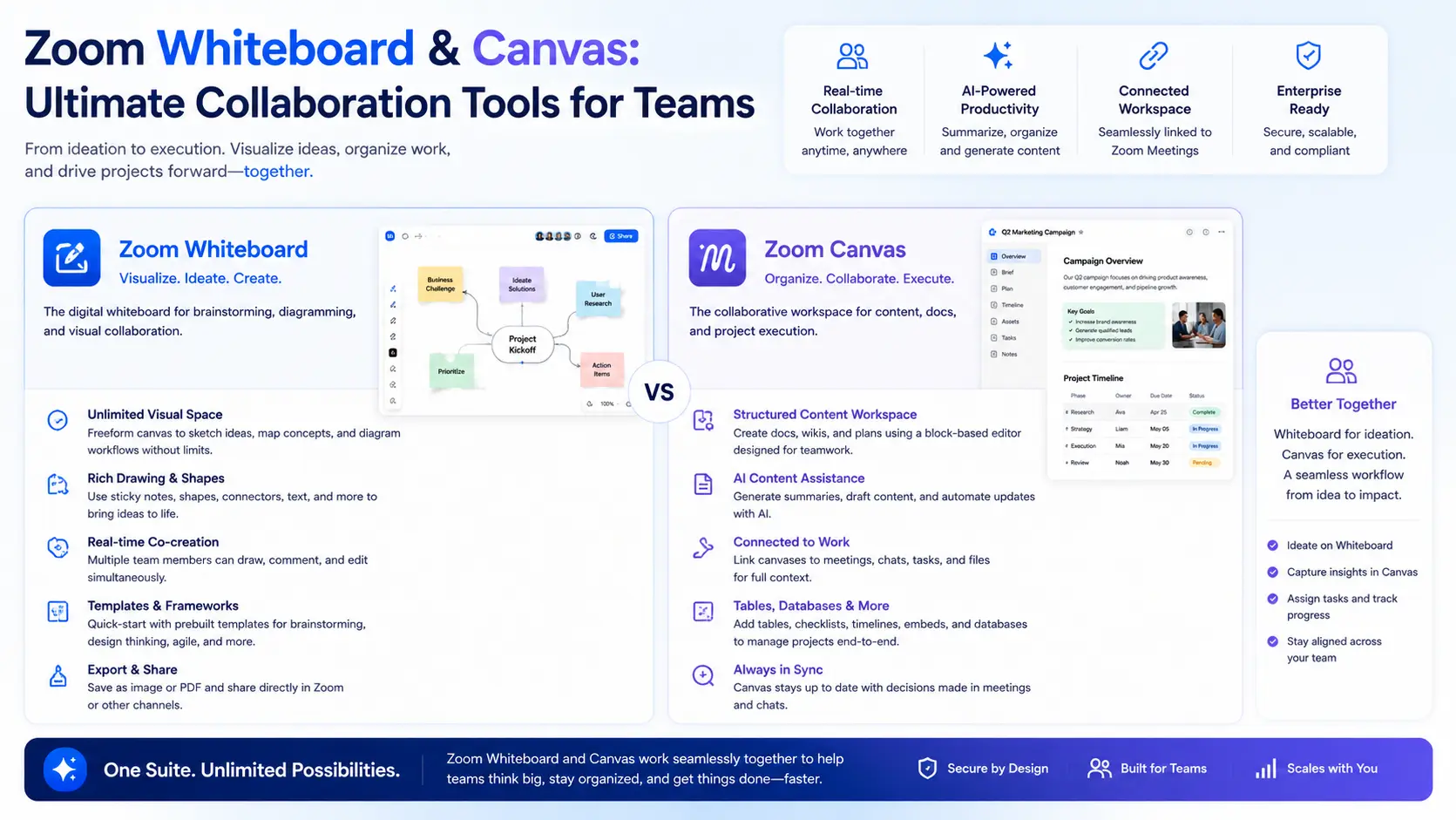
Zoom Whiteboard is a built-in digital whiteboard that gives teams a persistent, infinite canvas for brainstorming, diagramming, and planning — directly inside Zoom.
Unlike simply sharing your screen with a drawing app, Zoom Whiteboard is a true collaborative space where every participant can draw, add sticky notes, move shapes, and interact simultaneously. You can launch it mid-meeting with one click, or open it independently before or after a call to keep ideas alive between sessions.
What separates it from a generic whiteboard tool is context. Because it lives natively inside Zoom, it inherits your meeting permissions, integrates with Zoom Chat and Zoom Rooms, and saves automatically to your account — no third-party logins, no broken links, no "wait, where did we save that board?"
Who Should Use Zoom Whiteboard?
Zoom Whiteboard works especially well for:
Remote and hybrid teams that collaborate across time zones and need an async-friendly visual space
Project managers mapping workflows, timelines, or Kanban-style task boards
UX and product teams doing lightweight wireframing or journey mapping without switching to another tool
Educators and instructors running interactive class activities (especially with Canvas LMS integration)
Facilitators running workshops, retrospectives, or sprint planning sessions
Zoom Whiteboard Key Features: What You Actually Get
Infinite Canvas and Drawing Tools
The board has no edges. You can zoom out to view the big picture or zoom in on a specific corner where your team is working through details. The drawing toolkit includes pens, highlighters, text boxes, shapes, connectors, and sticky notes — everything you'd expect from a physical whiteboard, plus the ability to undo, resize, recolor, and rearrange without reaching for an eraser.
250+ Templates to Start Faster
Starting from a blank canvas is overrated. Zoom Whiteboard ships with over 250 built-in templates covering mind maps, Kanban boards, flowcharts, SWOT analyses, user story maps, and more. These aren't decorative — they're structured starting points that keep sessions focused and productive.
Pro tip: If your team runs recurring meetings (weekly standups, sprint retros, design reviews), save a customized template once and reuse it every time.
AI Companion Integration
Zoom's AI Companion can generate board content directly from a text prompt or a meeting transcript. Ask it to build a project roadmap from your last discussion, and it'll populate a multi-frame board with sticky notes and structure. You still review and refine everything, but it collapses the "blank page" problem that slows down every session.
This is one area where Zoom Whiteboard genuinely pulls ahead of simpler tools — the AI is baked in, not bolted on.
Shape Libraries for Technical Diagrams
Technical teams can access industry-specific icon libraries for AWS, Azure, Cisco, and other infrastructure platforms. This makes Zoom Whiteboard a viable option for lightweight architecture diagrams and network maps without needing a dedicated tool like Lucidchart.
Frames, Layers, and Multi-Page Boards
Complex projects don't fit on one screen. Frames let you create distinct "pages" within a single whiteboard (great for presenting one section at a time), while layers help you toggle between views — like hiding detailed annotations during a high-level walkthrough. This structure is something many competitors either don't offer or lock behind premium plans.
Sticky Notes, Comments, and Async Collaboration
Sticky notes are color-coded and fully editable, making them ideal for voting exercises, idea clusters, and quick feedback. Threaded comments let teammates leave input after a meeting — so collaboration doesn't stop when the call ends.
Presentation Mode
When it's time to present rather than co-create, Zoom Whiteboard's presentation mode gives you a laser pointer, built-in timer, and clean navigation. You can walk stakeholders through a board without them accidentally moving things around.
Access Controls and Security
Hosts control who can edit versus view. Anonymous mode lets participants contribute ideas without their names attached — which research consistently shows leads to more candid input, especially in larger groups. Enterprise accounts get customer-managed encryption keys, audit logs, and admin-level sharing controls.
Export Options
Finished boards can be exported as high-resolution images, PDFs, or PowerPoint slides. That last option is especially useful when stakeholders outside your organization need a snapshot without Zoom access.
How to Use Zoom Whiteboard: In Meetings and Beyond
During a Meeting
Open Zoom, start your meeting, and click Whiteboard in the toolbar. A new board opens instantly and every participant with edit permission can interact with it in real time. Meeting hosts can restrict editing on the fly — useful when you want input only from certain team members during a structured exercise.
You can also import a pre-built whiteboard into the meeting rather than starting fresh, which is ideal when you've already done prep work.
Outside of Meetings
Every whiteboard is saved to your Zoom account and accessible from the Zoom desktop app, web app, or mobile app. This means you can:
Prep boards before calls — layout the agenda, import materials, or pre-populate templates
Continue working async — teammates in different time zones can add to a board on their own schedule
Archive and revisit — past boards stay organized in folders by project or team
On Zoom Rooms for Touch Devices
If your office uses Zoom Rooms with interactive displays (like the DTEN D7 or Neat Board), in-room participants can whiteboard alongside remote teammates on the same canvas — bridging the physical and digital collaboration gap that's historically frustrated hybrid teams.
Zoom Whiteboard and Canvas LMS: A Powerful Combination for Education
For institutions using Canvas LMS, Zoom Whiteboard integrates directly into course pages. Instructors add the Zoom app to their course, and a dedicated Whiteboard tab appears — automatically creating a project folder tied to that course, with all enrolled students granted access.
This removes the friction of sharing links or managing separate permissions. An instructor can assign a collaborative whiteboard activity, students work on it inside Canvas (during class or async), and everything stays within the course environment.
For online and hybrid classrooms, this is a genuine workflow improvement over tools that require students to create separate accounts or navigate away from their learning platform.
What Is Zoom Canvas? (Formerly Zoom Docs)
Zoom Canvas is Zoom's AI-powered document workspace for creating, organizing, and sharing rich collaborative content — docs, wikis, tables, and more — all linked to your meetings and chats.
Think of it as the structured follow-through to Zoom Whiteboard's creative exploration. You sketch the idea on the whiteboard; you build it out in Canvas.
Previously called Zoom Docs (and before that, Zoom Paper), Canvas was rebranded to reflect its expanded scope. It's no longer just a word processor — it's a flexible, block-based workspace where different content types coexist on the same page.
After a strategy session, the AI Companion can auto-generate a meeting summary, extract action items, and populate them into a Canvas doc — ready for your team to refine and act on. That meeting-to-document workflow is the core value proposition, and it's genuinely useful for teams drowning in post-meeting admin.
Zoom Canvas Key Features
Block-Based Collaborative Editing
Drag and drop content blocks — headings, paragraphs, images, tables, code snippets, task lists — anywhere on the page. Multiple team members can edit simultaneously, with changes syncing in real time.
AI-Powered Content Generation
Ask the built-in AI Companion to draft a project brief, translate a document, summarize a meeting, or generate a table from your notes. The AI is the same assistant across Zoom Whiteboard and Canvas, so it has context from your meetings and boards.
Data Tables (Spreadsheet-Style)
Canvas supports structured tables with up to 20,000 rows on paid plans — suitable for project trackers, CRM-style contact lists, or budget overviews without leaving Zoom. It's not a full Excel replacement, but it handles the collaborative data management most teams actually need.
Multi-Page Wikis
Build interconnected pages with a sidebar navigation — ideal for team knowledge bases, onboarding guides, or ongoing project documentation. This positions Canvas as a lightweight alternative to tools like Notion or Confluence for Zoom-heavy teams.
Meeting-Linked Documents
Link a Canvas doc to a specific Zoom meeting so that agendas, notes, and follow-up tasks all live together. Everyone who attends the meeting automatically has access to the doc — no manual sharing required.
Zoom Hub Integration
The Zoom Hub is a unified personal workspace where your recent documents, pinned boards, meeting-linked docs, and notifications are aggregated. It's the command center for staying on top of everything Zoom-related without bouncing between apps.
Zoom Whiteboard vs. Miro, FigJam, and Microsoft Whiteboard
The honest take: Miro has a larger template library and more mature facilitation features for dedicated workshop facilitators. FigJam wins for design teams already inside Figma. Microsoft Whiteboard is hard to beat if your organization is Microsoft 365-first.
But for teams that live inside Zoom — and most remote-first teams do — Zoom Whiteboard removes friction that alternatives can't match. You don't need a separate tab, a different login, or a tool-switching habit. The whiteboard is just there, inside the meeting you're already in.
Zoom Whiteboard Pricing: What Each Plan Actually Includes
Zoom Canvas is bundled into all paid Zoom Workplace plans. The free tier allows limited AI document creation per month; paid plans unlock unlimited AI generation and full table capacity. No separate license is needed — if you have a paid Zoom Workplace account, Canvas is already available.
Quick note on the free plan: The 3-board limit is a real constraint for active teams. If you're running multiple concurrent projects, the Business plan (which includes Whiteboard Unlimited) typically makes more sense than an add-on.
Practical Tips for Getting the Most from Zoom Whiteboard
- Use anonymous mode for genuine brainstorming. When ideas are attached to names, quieter team members often self-censor. Anonymous mode levels the playing field.
- Convert sticky notes to tasks. Zoom Whiteboard integrates with Zoom Tasks, so action items captured on the board don't get lost — they become trackable tasks before the meeting ends.
- Set a pre-meeting board habit. If someone sets up the whiteboard before the call (even just adding a template and a few starter prompts), sessions start faster and run more productively.
- Combine Whiteboard with Canvas. Sketch the process flow on the whiteboard. Then move structured details — owners, deadlines, dependencies — into a Canvas doc. The two tools are designed to complement each other.
- Publish to the Zoom Gallery. If you build a genuinely useful template, share it publicly via the Zoom Whiteboard Gallery. It's a low-effort way to contribute to your community and occasionally surface useful templates others have shared.
- Lock boards when done. Once a whiteboard reaches a final state, lock it to prevent accidental edits. The version history feature also lets you roll back changes if something goes wrong.
- Use frames for structured presentations. If you need to walk stakeholders through a board, use frames to create a defined sequence — it turns your whiteboard into a slideshow without exporting anything.
Zoom Whiteboard Use Cases by Team Type
Product and Engineering Teams
Map sprint backlogs, sketch system architecture with tech-specific icons, run retrospectives with sticky-note clusters, and document decisions in linked Canvas wikis — all without leaving Zoom.
Marketing and Creative Teams
Brainstorm campaign concepts, build content calendars in Canvas tables, annotate creative briefs directly on uploaded PDFs, and align on messaging in real-time boards.
Sales and Client-Facing Teams
Use Canvas to convert meeting notes from client calls into formatted proposals. Run live whiteboard sessions during discovery calls to map client challenges visually — it's more engaging than a slide deck.
Education and Training
Instructors can run interactive class activities via Canvas LMS integration, assign whiteboard-based group projects, and give async feedback through comments — without requiring students to create separate accounts.
Final Thoughts: Are Zoom Whiteboard and Canvas Worth It?
If your team already uses Zoom as its primary communication platform, the answer is almost certainly yes. Getting Whiteboard and Canvas doesn't require a new subscription, a new learning curve, or another tool to manage — they're already inside the platform you're using.
The real question isn't whether to use them; it's whether you're using them well. Most teams that have access to Zoom Whiteboard still default to screen-sharing a PowerPoint, which is a bit like having a sports car and only driving it in first gear.
Start simple: next time you have a brainstorming session, open a whiteboard instead of a slide deck. Let people add sticky notes. Convert the output to a Canvas doc. Once your team experiences that end-to-end workflow, the value becomes obvious.
For teams with more advanced visual collaboration needs — dedicated workshop facilitators, large-scale design teams, or organizations with established Miro workflows — Zoom Whiteboard may complement rather than replace your existing tools. But for the majority of remote and hybrid teams looking to collaborate more visually without adding more software to manage, it's exactly where you should start.