Zoom Webinar vs Meeting vs Events: Which One Do You Actually Need?
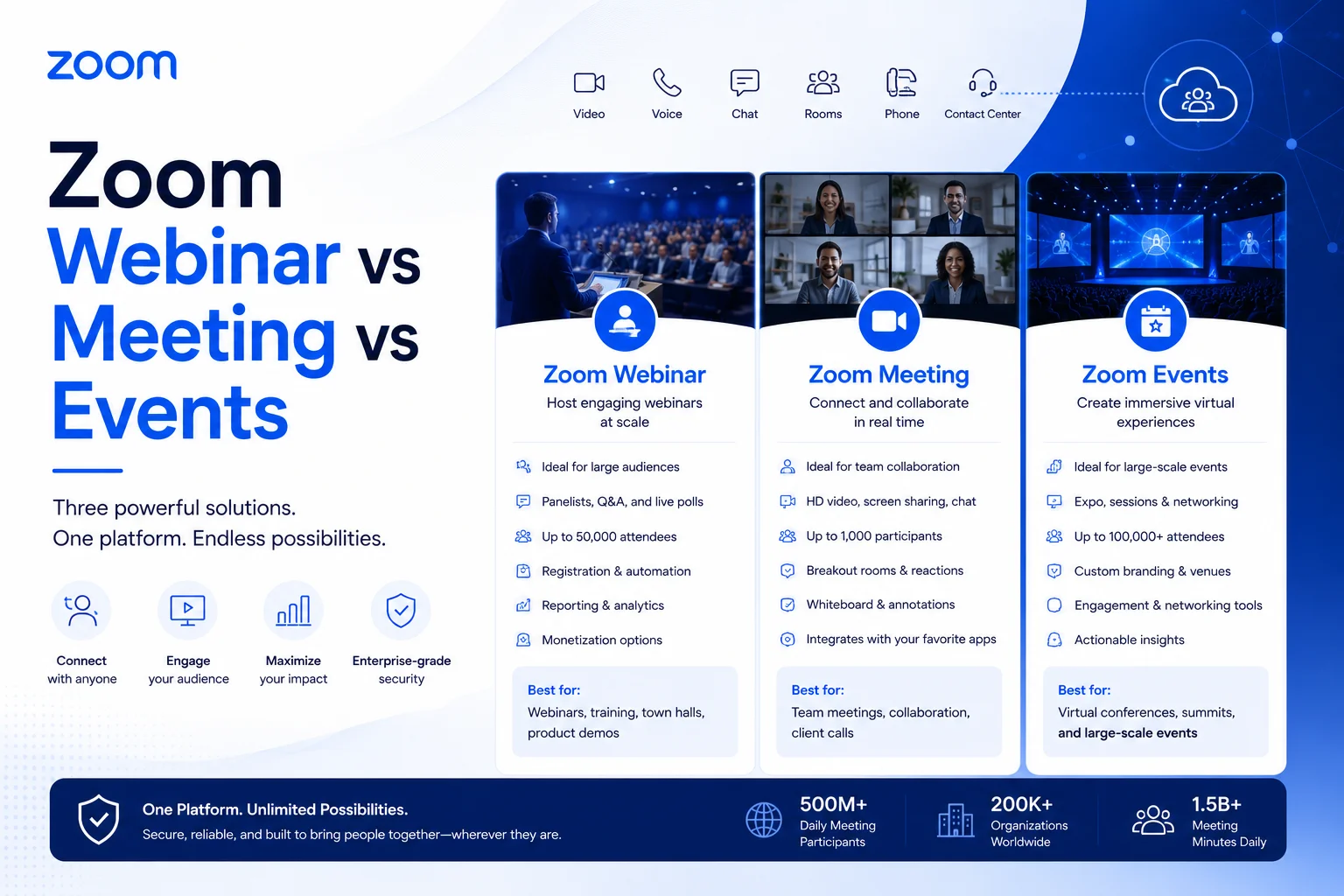
Quick answer: Zoom Meetings are for two-way collaboration (up to 1,000 people), Zoom Webinars are for one-to-many broadcasts (up to 100,000+ attendees), and Zoom Events is a full virtual conference platform that combines both into a multi-session experience. Keep reading for the full breakdown, feature comparison, setup guides, and a decision flowchart.
Picking the wrong Zoom product wastes money, confuses your audience, and creates technical headaches you don't need on event day. The three options — Meetings, Webinars, and Events — look similar on the surface but serve fundamentally different purposes.
This guide cuts through the confusion. Whether you're running a 20-person team standup, a 5,000-attendee product launch, or a multi-day virtual conference with sponsor booths, you'll know exactly which tool fits and how to set it up right.
What Is Zoom Meeting? Features, Capacity & Best Uses
Zoom Meetings is the foundation of the Zoom platform — the product most people picture when they think "Zoom." Every participant joins with full audio and video rights, can share their screen, annotate content, and contribute to the conversation in real time.
Think of it like a conference room: everyone at the table has a voice.
Core Features
- Interactive video and audio — All participants can unmute and turn on their camera. No waiting to be "promoted" to speaker status.
- Screen sharing and annotation — Anyone (with host permission) can share their screen or annotate over shared content, making it ideal for training and demos.
- Breakout rooms — Split attendees into smaller groups for workshops, team exercises, or discussions, then bring everyone back together.
- Zoom Whiteboard — One of Meetings' most underrated features. The built-in digital whiteboard gives your team an infinite canvas to brainstorm, diagram processes, and map out ideas using sticky notes, connectors, shapes, and freehand drawing — in real time or asynchronously. It even includes 250+ pre-built templates for activities like mind mapping and sprint planning.
- In-meeting chat and reactions — Text chat, emoji reactions, and hand-raise controls for managing larger groups.
- AI Companion — Zoom's AI automatically summarizes meetings, captures action items, and provides live transcription.
- Recording — Cloud or local recording with searchable transcripts.
The free plan caps meetings at 40 minutes for groups of 3+. Paid plans remove that limit.
When to Use Zoom Meetings
Zoom Meetings shines any time two-way conversation matters:
- Team standups and project check-ins — Everyone contributes, questions fly freely, decisions get made.
- Training sessions and workshops — Breakout rooms let you run small-group exercises within the same session. Combine with Zoom Whiteboard for collaborative ideation.
- Sales demos and client calls — The host can let clients share screens or annotate, turning a presentation into a dialogue.
- Online classes — Instructors can use polls, Q&A, and Whiteboard to keep students active.
- Internal town halls (under 1,000 people) — With the Large Meeting add-on, you can host company-wide meetings with structured participation.
Practical tip: If your audience is larger than 100 but you still need everyone to interact, the Large Meeting add-on is far cheaper than upgrading to a Webinar license — and preserves all the interactive features attendees expect.
What Is Zoom Webinar? Features, Capacity & Best Uses
Zoom Webinars flips the model. Instead of a conference room, picture an auditorium: a small number of people on stage presenting to a large audience that watches and listens, with structured channels for asking questions or responding to polls.
This is the right tool when you're broadcasting to a large audience and need control over who speaks.
Core Features
- Panelist vs. attendee roles — Hosts and panelists can share audio, video, and screens. Attendees join muted and without video by default, keeping the broadcast clean.
- Q&A panel — Attendees submit questions that the host or a moderator can answer live, in writing, or dismiss. Far cleaner than open chat for large groups.
- Polls — Launch real-time polls to gauge audience sentiment, test knowledge, or increase engagement.
- Registration with custom branding — Build a branded registration page with custom fields, your company logo, colors, and banners. Email reminders go out automatically. This is genuinely useful for lead capture.
- Multi-stream broadcasting — Simulcast your webinar live to YouTube, Facebook, and LinkedIn simultaneously, dramatically expanding reach.
- Post-webinar analytics — Download attendee reports, Q&A transcripts, poll results, and engagement data for follow-up.
- On-demand replay — Recorded webinars can be made available for registrants who couldn't attend live.
Up to 1,000 panelists can share audio and video simultaneously regardless of the attendee tier — enough for virtually any panel format.
Important: Webinars are a paid add-on. You need an active Zoom Workplace paid plan plus the Webinar license.
When to Use Zoom Webinars
Choose Webinars when scale and control matter more than open discussion:
- Company all-hands for large organizations — Executives present, employees watch, Q&A is managed.
- Product launches and announcements — Clean broadcast format with branded registration and recording for later use.
- Marketing and lead generation webinars — The registration page doubles as a lead capture form. Analytics help your team follow up with engaged attendees.
- Public-facing education and lectures — Keep the focus on the presenter without 2,000 people accidentally unmuting.
- City council meetings and public hearings — Structured participation with Q&A keeps proceedings orderly.
Practical tip: Promote a trusted attendee to panelist mid-webinar if you want to bring them on screen for a live interview or testimonial. This is a great way to add spontaneity without losing host control.
What Is Zoom Events? Features, Capacity & Best Uses
Zoom Events is a different beast entirely. It's a virtual event platform built on top of Zoom Meetings and Webinars — a way to package multiple sessions, tracks, and experiences under one branded roof.
If Zoom Meetings is a conference room and Zoom Webinars is an auditorium, Zoom Events is the entire convention center.
Core Features
- Multi-session agenda — Program multiple simultaneous tracks across different rooms. Attendees browse the full schedule and join the sessions they want, just like a real conference.
- Branded event hub — Create a central lobby with your organization's branding where attendees check in, find their sessions, and explore the event.
- Virtual expo floor and sponsor booths — Sponsors get their own digital booths where attendees can browse materials, chat with representatives, or join a video call.
- Networking lounges — Dedicated spaces for attendees to meet each other, exchange contact info, and have unstructured conversations — the "hallway track" of your virtual event.
- Ticketing and registration — Offer free or paid tickets with integrated payment processing (PayPal/Stripe). Gate premium sessions behind paid tiers.
- Event-wide analytics — See attendance per session, booth visit frequency, poll engagement, networking activity, and more — all in one dashboard.
- Hybrid event support — Combine in-person and virtual sessions so remote attendees can join alongside those physically present.
When to Use Zoom Events
Zoom Events makes sense when a single-session meeting or webinar isn't enough:
- Virtual conferences and summits — Multi-day, multi-track events with keynotes, breakouts, and networking.
- Trade shows and expos — Virtual exhibit halls where vendors can engage with prospects.
- Large employee learning events — Different departments attending different tracks simultaneously.
- Partner or customer conferences — Branded, structured experiences that reinforce company identity.
Heads up: Zoom Events has a significantly higher price point and a steeper setup curve than a standard webinar. Unless you genuinely need multi-session tracks, virtual booths, or ticketing, a well-run Webinar is usually sufficient and much easier to manage.
How to Set Up Each Zoom Product
How to Set Up a Zoom Meeting
- Sign in to your Zoom account at zoom.com or in the desktop app.
- Click Schedule and fill in the date, time, duration, and topic.
- Under Security, enable a Waiting Room and/or Passcode to prevent uninvited guests.
- Enable Registration if you want to collect attendee names and emails before the meeting (available on paid plans).
- Save the meeting and copy the invite link to share with participants.
- On the day, open Zoom and click Start next to your scheduled meeting.
Before you go live: Test your camera and microphone, set up Zoom Whiteboard if you'll be using it for collaboration, and confirm that any co-hosts know how to manage breakout rooms.
Technical requirements: Zoom desktop app (latest version recommended), stable broadband connection (at least 3Mbps up/down for HD video).
How to Set Up a Zoom Webinar
- Confirm your account has an active Webinar license (add-on purchase required).
- In the Zoom web portal, go to Webinars → Schedule a Webinar.
- Set the topic, date/time, and capacity tier.
- Enable Registration and customize the registration form (add fields, your logo, brand colors).
- Add panelists by email — they receive a unique host-side join link. Attendees use a separate registrant link.
- Turn on Q&A, set up your polls in advance, and decide whether you're recording.
- Configure email reminders for registered attendees (24-hour and 1-hour reminders are standard).
- Rehearse with all panelists at least once before the live event.
On event day: Panelists join early using their specific host link. The webinar begins for attendees at the scheduled time. Monitor Q&A with a dedicated moderator so the presenter can stay focused.
Common mistake: Sending panelists the attendee registration link instead of the host/panelist link. They'll join muted and unable to speak. Double-check link types before sending invites.
How to Set Up a Zoom Event
- Ensure you have a Zoom Events license (or Zoom Workplace with Events access).
- Go to the Zoom Events portal and click Create Event.
- Enter the event name, dates, description, and cover image for your event hub.
- Build your agenda: add sessions, assign each as a Meeting or Webinar format, and assign hosts/panelists per session.
- Set up ticketing: choose free or paid tiers, set capacity limits, and connect PayPal/Stripe for paid tickets.
- Design your event hub: add sponsor booths, networking lounges, and branding elements.
- Publish a test event for your production team to verify the attendee experience end-to-end.
- Update all Zoom clients to the latest version — Zoom Events often requires recent features unavailable in older app versions.
Strongly recommended: Assign a dedicated event producer who manages the platform during the live event so that session hosts can focus entirely on their content.
Best Practices That Actually Move the Needle
Zoom Meeting Best Practices
- Send an agenda before every meeting. Attendees who know what to expect participate more and arrive prepared.
- Use Zoom Whiteboard for collaborative brainstorming. Instead of a screen-shared slide deck, open a whiteboard and build ideas together. Sticky notes and connectors work especially well for retrospectives, sprint planning, and problem-solving workshops.
- Enable Waiting Room by default. It's your first line of defense against unwanted guests and gives you a moment to prepare before opening the session.
- Assign co-hosts for larger meetings. One person can't facilitate discussion, manage participants, run polls, and handle chat at the same time.
- Record and share summaries. Zoom AI Companion can auto-generate meeting summaries with action items. Share these within 24 hours while context is fresh.
Zoom Webinar Best Practices
- Do a full technical rehearsal. Run through the entire session with panelists 24–48 hours before the live event. Test video, audio, screen sharing, and slide transitions.
- Assign a dedicated Q&A moderator. This person filters questions, dismisses duplicates, and surfaces the best ones for the presenter — without the presenter needing to watch the Q&A panel themselves.
- Build polls in advance, not on the fly. Pre-written polls launch faster and feel more polished. Use them early in the session to warm up the audience and again at the 30-minute mark to re-engage.
- Use the multi-stream feature for maximum reach. Broadcasting simultaneously to YouTube, LinkedIn, and Facebook can triple your live audience with zero additional effort.
- Gate the recording. Require registration to watch the replay, so late registrants still enter your funnel.
Zoom Events Best Practices
- Map your attendee journey before you build anything. Where does someone land when they arrive? What are the first three things they should do? Design the experience intentionally before configuring the platform.
- Don't neglect the networking lounge. For many attendees, peer connections are the primary reason to attend a virtual conference. Announce the lounge at the start of each session and encourage people to use it during breaks.
- Create a sponsor brief for booth exhibitors. Tell them exactly what content to upload, how to staff their booth, and when peak traffic typically occurs. Uninformative booths hurt the whole event's credibility.
- Run a post-event analytics review within 48 hours. Which sessions had the highest retention? Which booths drove the most visits? Use the data to improve the next event and to share ROI metrics with sponsors.
Pros and Cons at a Glance
Zoom Meetings
Pros: Included in all Zoom Workplace plans, easy to set up, fully interactive, supports breakout rooms and Zoom Whiteboard, AI-powered summaries save time.
Cons: Limited to 100 participants without a paid add-on, everyone can unmute (which requires active host management for large groups), less structured for presentation-style events.
Zoom Webinars
Pros: Handles very large audiences cleanly, host has full control over who speaks, built-in registration with branding doubles as lead capture, rich post-event analytics, multi-stream broadcasting extends reach.
Cons: Requires a separate paid add-on, attendees are passive by default (which can reduce perceived energy), setup is more involved than a standard meeting, no breakout rooms or Whiteboard.
Zoom Events
Pros: The only Zoom product designed for full-scale virtual conferences, multi-session tracks, virtual expo floor, networking tools, ticketing, and comprehensive event analytics all in one platform.
Cons: Significantly higher cost, steep learning curve, requires dedicated event production resources, and is overkill for anything that isn't a genuine multi-session conference.
How to Choose: Decision Flowchart
Use these questions to pick the right product in under a minute:
1. How many people will attend?
- Under 100 → Zoom Meeting (free plan works)
- 100–1,000 → Zoom Meeting + Large Meeting add-on
- 1,000+ → Zoom Webinar or Zoom Events
2. Do you need two-way participation from the audience?
- Yes → Zoom Meeting
- No (you're presenting, they're watching) → Zoom Webinar
3. Do you need multiple simultaneous sessions, virtual booths, or ticketing?
- Yes → Zoom Events
- No → Zoom Webinar is sufficient
4. Is this a recurring team collaboration or a one-time broadcast event?
- Regular collaboration → Zoom Meeting
- One-time broadcast → Zoom Webinar
- Annual conference or summit → Zoom Events
Conclusion
The bottom line is straightforward: use Zoom Meetings for collaboration, Zoom Webinars for large-scale broadcasting, and Zoom Events for full virtual conferences. Each product solves a real problem — they just solve different ones.
Before you commit, think about your audience size, how much interaction you need, and whether one session is enough. Most of the time, a well-run Zoom Meeting with Whiteboard and breakout rooms handles more than people expect. Step up to Webinar when you're scaling to hundreds or thousands of attendees and need clean host control. Only reach for Zoom Events when the complexity of a conference genuinely demands it.
Get the format right first, then focus on the content. That's what makes virtual events worth attending.