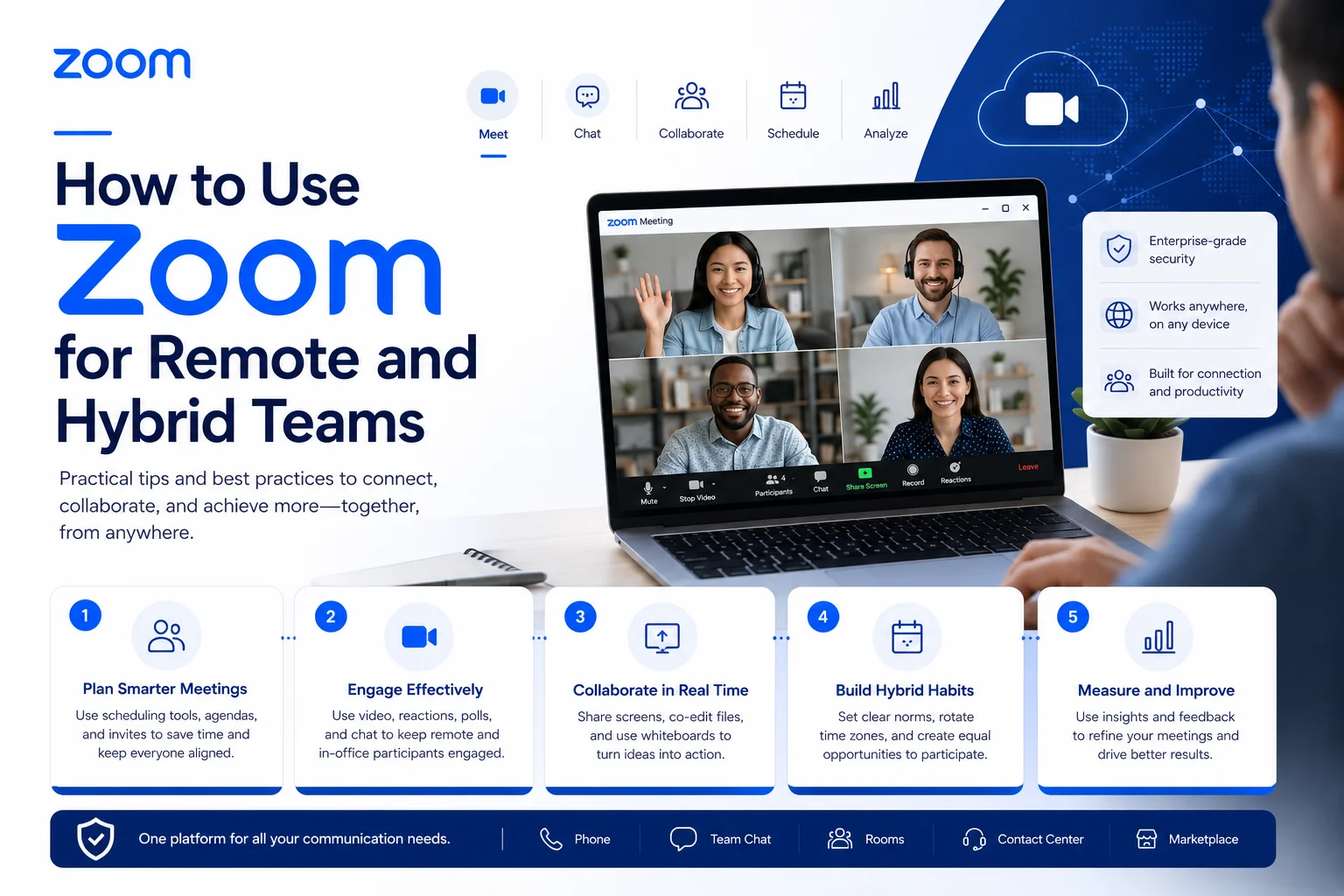
Zoom Best Practices for Remote and Hybrid Work: The Complete 2025 Guide
Quick answer: Effective Zoom use in remote and hybrid settings comes down to three things — a proper technical setup, smart use of Zoom's built-in features (Whiteboard, breakout rooms, AI Companion), and consistent meeting habits that keep everyone engaged and secure. This guide covers all three in practical, actionable detail.
Most teams don't fail at remote work because of bad strategy. They fail because their Zoom calls run too long, leave remote participants feeling like spectators, or get derailed by avoidable technical issues.
Seventy-five percent of employees say the technology their company uses needs improvement — and video meetings are usually where that frustration is most visible. But Zoom isn't the problem. How most people use it is.
This guide is for team leads, IT managers, and anyone who runs recurring virtual or hybrid meetings. You'll find setup guidance, feature-by-feature best practices, security essentials, and the specific habits that separate meetings people dread from ones that actually move work forward.
The Zoom Features Remote Teams Actually Use (And Which Ones They Miss)
Before getting into practice, it's worth knowing what's available. Zoom's feature set has expanded significantly, and many teams are only using a fraction of it.
Video, Audio, and Screen Sharing
The basics: HD video, multi-participant audio, and full-screen or window-specific screen sharing. What most people don't configure is audio quality — enabling noise suppression in your settings makes a noticeable difference in meetings with background noise.
Breakout Rooms
Zoom supports up to 50 simultaneous breakout rooms. Hosts can assign participants automatically or manually, set time limits, and broadcast messages to all rooms at once. This feature is genuinely underused — it transforms a passive 60-minute presentation into a working session where people leave with actual outputs.
Zoom Whiteboard
Zoom Whiteboard is a virtual whiteboard built into Zoom that allows users to draw, add text, insert sticky notes, and upload images. It's designed to simulate a physical whiteboard while offering digital advantages like editable templates, multiple pages, and real-time collaboration.
Zoom offers access to more than 250 ready-made templates for activities like mind mapping, project planning, and flowcharts. Teams can use it during a meeting or asynchronously between sessions — the board persists after the call ends. For retrospectives, sprint planning, or any session where ideas need to be captured visually, Whiteboard is more effective than sharing a static slide deck.
Whiteboard PLUS offers additional perks beyond the standard version, including extra data storage, compatibility with project management platforms like Jira and Asana, and personal template creation.
Zoom AI Companion
This is where Zoom has invested heavily in 2025. You can use Zoom AI Companion to ask questions without interrupting the meeting, receive summaries with action items after meetings, leverage smart recordings, and save time when creating video clips.
AI Companion 3.0 introduces new AI-first capabilities for personal workflows, agentic AI features for Zoom Docs, and a new web interface with expanded context to help users uncover insights, optimize their day, and uplevel their work. It's available at ai.zoom.us and now works across Microsoft Teams and Google Meet as well — not just Zoom calls.
For distributed teams, the practical value is significant: no more manually writing meeting notes, chasing down action items, or wondering what was decided while someone was dealing with a connectivity issue.
Polls, Reactions, and Q&A
In-meeting polls let you gather quick input or votes. Reactions (thumbs up, raise hand, applause) give participants a low-friction way to respond without unmuting. Q&A, more typically associated with webinars, can be enabled in large meetings to manage questions from big groups.
Virtual Backgrounds and Filters
Useful for maintaining professionalism from imperfect home environments, but also valuable for hybrid meetings where company-branded backgrounds can reinforce brand identity across all participants.
Recording and Transcription
Every meeting can be recorded locally or to Zoom Cloud. AI Companion generates a searchable transcript automatically. For teams across time zones, sharing the recording link within the hour is often more useful than any follow-up email.
Setting Up for a Good Zoom Meeting: Hardware and Environment
The meeting content matters, but technical quality shapes how it's received. A presenter with choppy audio loses credibility before they've said anything meaningful.
The Minimum Viable Setup
- Camera: Most modern laptop webcams work for 1:1 calls. For team meetings, a 1080p USB webcam positioned at eye level makes a meaningful difference.
- Microphone: The built-in laptop mic is fine for quiet rooms. A USB headset or desktop condenser mic eliminates background noise and echo for everyone else.
- Lighting: Sit facing a window or place a lamp behind your monitor. Backlit faces are the single most common and easily fixed video quality problem.
- Internet: Aim for at least 3Mbps upload/download for stable HD video. Close other bandwidth-heavy applications before joining.
Before Your First Meeting
Test your audio and video at zoom.us/test — it takes 60 seconds and eliminates most "can you hear me?" situations. Keep your Zoom app updated; major security patches and AI features are version-dependent.
Hybrid Room Setup
If you're trying to make sure that engagement is equal across virtual and in-person participants, that starts with technology. Everyone — remote and in the office — needs a stable, high-speed internet connection. But don't skimp on the hardware if you want this to go well.
For a hybrid conference room: position the camera at eye level (not angled up from a laptop on the table), use a conference microphone that captures the full room, and run two screens where possible — one showing the remote participants gallery, the other showing shared content. Zoom Rooms hardware combines these components into a single managed system.
Planning and Scheduling: The Decisions That Happen Before the Meeting
Most meeting problems are actually planning problems in disguise.
Set a Realistic Agenda — and Stick to It
An agenda with time allocations does two things: it forces the organizer to think clearly about what the meeting actually needs to accomplish, and it gives participants a way to flag when discussion is running over. Send it at least 24 hours in advance along with any documents that require review.
Choose the Right Communication Channel
Not every update needs a meeting. A rough guide that works well in practice:
- Quick status updates, informal questions → Zoom Chat (or Slack)
- Decisions that need discussion → Zoom Meeting (keep it short)
- Formal announcements or policies → Email
- Large broadcasts (100+ people) → Zoom Webinar
- Multi-day conferences with tracks → Zoom Events
Use Generated Meeting IDs, Not Your Personal Meeting Room
Your Personal Meeting ID (PMI) is essentially a permanent door to your Zoom room. Anyone who has ever had that link can join any session you host there. For anything beyond a recurring 1:1, generate a new meeting ID each time and add a passcode.
Scheduling Across Time Zones
Tools like Calendly or Zoom Scheduler can identify available slots across multiple time zones automatically. For truly global teams, rotate meeting times so the same person isn't always joining at 6 AM or 10 PM.
Running an Effective Zoom Meeting: What Good Facilitation Actually Looks Like
Starting Right
The first three minutes set the tone for the rest of the session. Open by confirming audio ("Can everyone hear me clearly?"), acknowledge who's present, and briefly state the meeting goal and how long you'll run. This sounds simple — most hosts skip it, and meetings drift as a result.
Muting and Audio Etiquette
Ask everyone to mute when not speaking. In larger calls, enable mute on entry by default and communicate the spacebar push-to-talk shortcut (hold spacebar to unmute temporarily). This single habit eliminates most of the background noise that derails meetings.
Cameras On vs. Cameras Off
Encouraging everyone to use video with cameras turned on makes for easier interactions and allows remote workers to observe facial expressions. That said, camera policies need flexibility — poor connectivity, open-plan offices, and caregiver situations all create legitimate reasons to be camera-off. A reasonable default: cameras on for smaller meetings (under 10 people), optional for large calls.
Managing Speaking Turns
In hybrid calls especially, remote participants get talked over. Use the Raise Hand feature to manage speaking order and make it a habit to explicitly invite remote attendees to contribute. Spotlighting the active speaker helps everyone follow who's talking.
Active Facilitation
Don't let meetings become one person talking while everyone else multitasks. Address participants by name. Ask direct questions. If you notice the meeting wandering, use the agenda to redirect: "We've got 10 minutes left on this topic — let's make a decision and move on."
Keeping People Engaged: Practical Techniques That Work
Engagement doesn't happen by accident in virtual meetings. It needs to be designed in.
Use Zoom Whiteboard for Collaborative Brainstorming
Instead of presenting a pre-built slide and asking for comments, open a blank Whiteboard or template and build the ideas together. Zoom Whiteboard elevates collaboration with interactive presentations, live activities, and tools that spark ideas and get everyone involved. Sticky note clustering, dot voting, and journey mapping all translate naturally to the digital canvas.
Breakout Rooms for Real Discussion
For any meeting longer than 45 minutes with more than 6 people, plan at least one breakout room segment. Give each room a specific question to answer or decision to make, set a 10-15 minute timer, then reconvene for group shares. People who stayed quiet in the full group often speak freely in a room of three.
Polls for Real-Time Input
Launch a poll at the beginning to warm up the room, mid-session to check understanding or gather preferences, or at the end to prioritize next steps. Even simple yes/no polls break up passive listening and give quieter participants a way to contribute.
The "Informal Time" Habit
Letting participants "enter" early on Zoom for informal chat mimics hallway conversation. Open the meeting 5 minutes early and don't start the agenda immediately. The casual conversation that happens in those five minutes does more for team cohesion than most team-building activities.
For distributed teams, periodic virtual coffee breaks or end-of-week informal calls help maintain the social fabric that remote work can erode.
Hybrid Meeting Best Practices: Making It Work for Both Rooms
Hybrid meetings are harder than fully remote ones. The people in the room default to talking to each other; remote participants become observers. Preventing this requires deliberate design.
The Physical Setup
A single laptop perched at the end of a long table won't cut it. To create a truly unified experience, invest in a high-quality camera with a wide-angle lens that can capture everyone in the room.
Position the camera so it captures faces, not the tops of heads or an empty whiteboard. Use a conference microphone that doesn't require people to speak loudly. If budget allows, Zoom Rooms hardware (an integrated camera, mic, and display system) simplifies setup and delivers consistently better results than assembled components.
Designate an In-Room Facilitator
This person's job is to bridge the two audiences. They monitor the Zoom chat for remote questions, voice them in the room ("Alex in Chicago has a question —"), and make sure in-room side conversations don't leave remote participants behind. Without this role, hybrid meetings reliably disadvantage whoever isn't physically present.
Equal Participation Practices
- Explicitly invite remote participants to speak by name — don't wait for them to break into the in-room conversation flow
- Repeat important whiteboard or in-room content verbally for remote attendees
- Use Zoom's Smart Name Tags in Zoom Rooms to help remote participants identify in-room speakers
- Record the session or enable live transcription so content isn't lost to connectivity issues
Zoom Rooms Intelligent Director gives remote employees a better look at their in-office co-workers in larger spaces, using AI to automatically pan and frame speakers — a meaningful quality-of-life improvement for participants trying to follow a large-room discussion.
Zoom Security: What You Actually Need to Do
Security for Zoom meetings doesn't require IT expertise. A handful of settings, consistently applied, eliminates the most common risks.
The Non-Negotiables
1. Use a generated meeting ID with a passcode Never use your PMI for anything beyond recurring 1:1 calls. A passcode is embedded in the invite link — attendees don't need to type it separately, but it blocks anyone guessing random meeting IDs.
2. Enable Waiting Room The Waiting Room feature prevents people from joining until the host is ready. Zoom has made this a default setting. Meeting hosts admit people individually so they can confirm each participant belongs in the meeting. Assign a co-host to manage admissions so the host can focus on running the meeting.
3. Disable "Join Before Host" This prevents a meeting from starting — or being disrupted — before you're present to manage it.
4. Never share meeting links publicly Don't post Zoom links in public Slack channels, social media, or event pages. Share via direct email, calendar invites, or private messages only.
During the Meeting
Once all expected participants are in, lock the meeting from the Security panel. This prevents any late joiners — wanted or otherwise. If someone disruptive enters before you lock, use Suspend Participant Activities to immediately mute all audio/video and stop screen sharing while you remove them.
For meetings involving confidential information, require participants to sign in with an authenticated organizational Zoom account. This prevents anyone without a verified account from joining even with a valid link.
Large or Public Events
If hosting a large public event, it's recommended that you host it as a webinar. A webinar splits the audience into pre-approved panelists who have control over their microphone and webcam, and participants who do not — and because participants have no control over their mic or webcam without host permission, disruption becomes nearly impossible.
Collaboration and Productivity: Getting More Done in and Around Meetings
Zoom Chat for Day-to-Day Communication
Zoom Chat (now part of Zoom Workplace) functions as a persistent team messaging system — channels, threads, file sharing, and reactions. Using it for quick updates reduces the number of meetings required. Create dedicated channels for projects so context doesn't scatter across email threads.
Zoom Whiteboard for Async Collaboration
Whiteboard isn't just for live meetings. You can collaborate on whiteboards before or after meetings, or initiate a virtual whiteboard during a Zoom meeting. Boards can be shared with other Zoom users so they can access them anytime, during or outside a meeting. For distributed teams across time zones, an async whiteboard where team members add ideas before a live session dramatically improves the quality of the live discussion.
Zoom AI Companion for Follow-Through
The gap between what gets decided in a meeting and what actually happens is where most productivity is lost. AI Companion closes that gap by automatically generating meeting summaries with action items, capturing them before anyone has to ask "so what are the next steps?" Share the summary in Zoom Chat within the hour and assign owners to each action item.
The enhanced "prepare me for a meeting" skill provides proactive prompts in advance of a meeting so users know the agenda, previous action items, and key insights to drive productive conversations. For back-to-back heavy schedules, this means you arrive at every meeting contextualized rather than catching up.
Integrations That Reduce Context Switching
Zoom's app marketplace includes hundreds of integrations. The highest-value ones for most teams:
- Google Drive / OneDrive — share and collaborate on files without leaving the meeting
- Asana / Trello / Jira — create tasks directly from AI Companion meeting summaries
- Slack — receive Zoom notifications and meeting summaries in Slack channels
- Calendly — automate scheduling with a Zoom link pre-attached to every booking
Accessibility and Inclusion: Making Every Meeting Work for Everyone
Live Captions and Transcription
Enable live captions by default, not on request. Captions benefit participants with hearing impairments, non-native speakers, people in noisy environments, and anyone who missed something and needs to quickly review. The AI-generated transcript is searchable after the meeting, which makes it a useful reference beyond accessibility alone.
Verbal Descriptions of Visual Content
When presenting slides or sharing your screen, narrate what you're showing: "I'm looking at the Q3 revenue chart — the blue bars represent enterprise accounts." This helps participants on small screens, those with visual impairments, and anyone who's momentarily looking away.
Flexible Participation
Allow the Raise Hand feature as an equal alternative to verbal interruption — it's especially useful for participants who are less comfortable jumping into fast-moving conversation. For global teams, record sessions and share recordings promptly. Being required to attend a 9 PM call because that's when everyone else is available is a form of exclusion.
Quieter Voices
Explicitly invite input from participants who haven't spoken. A simple "We haven't heard from you yet — anything to add?" is more inclusive than assuming silence equals agreement.
Common Zoom Mistakes That Undermine Productive Meetings
Running too long. Most meetings should be 30-45 minutes. If you consistently need 90 minutes, you're solving the wrong problem in a meeting. Break it into smaller, purpose-built sessions.
Back-to-back scheduling. Video calls are more cognitively demanding than in-person ones. Build in at least a 10-minute gap between meetings. Better yet, block "focus time" on your calendar that meeting invites can't override.
No agenda, no follow-up. A meeting without an agenda is a conversation. A meeting without follow-up notes is a memory exercise. Both undermine the investment of everyone's time.
Using the Personal Meeting ID for everything. This is a significant security risk that's trivially easy to avoid.
Neglecting the remote experience in hybrid calls. If remote participants can barely hear the room, can't see who's speaking, and can't break into the conversation, they're not really in the meeting.
Treating Zoom as just a video call tool. Teams that use only the video feature and ignore Whiteboard, Breakout Rooms, Polls, and AI Companion are leaving significant productivity and engagement on the table.
Conclusion
Remote and hybrid work isn't going back to how it was. In 2025, hybrid is no longer an exception — it's the default pattern for many teams, and the way you run meetings needs to reflect that.
The teams that get this right don't use more features — they use the right ones consistently. A well-configured meeting room setup, Whiteboard for live collaboration, AI Companion for follow-through, breakout rooms for real engagement, and a handful of security defaults that become habits. That's the full picture.
Start with one section from this guide that addresses your team's most visible problem. Fix that, then build from there. The goal isn't perfect meetings — it's meetings where everyone leaves knowing what was decided and what happens next.