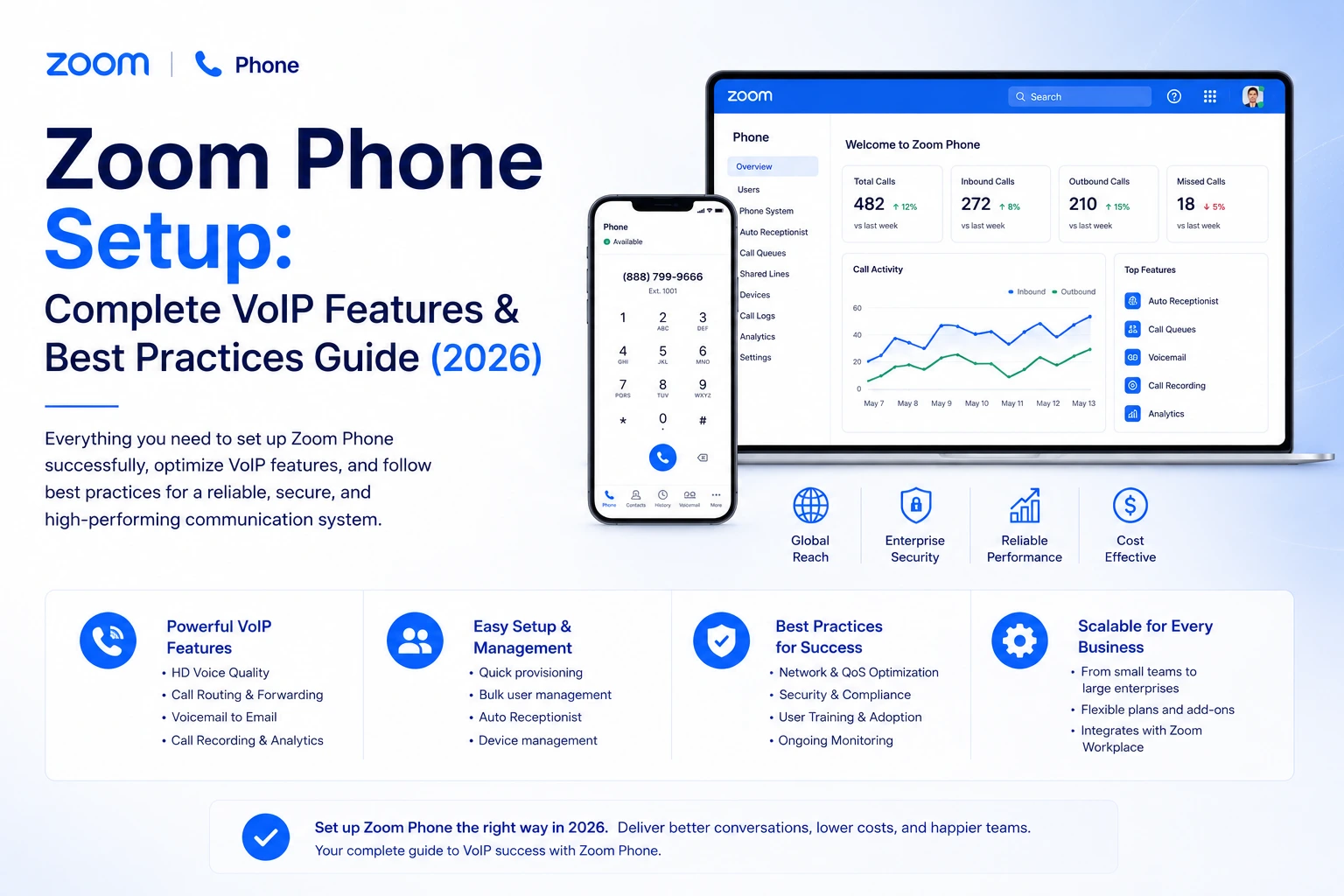
What Is Zoom Phone and Why Does It Matter in 2026?
If your business is still running on an on-premises PBX or a patchwork of separate calling apps, you're leaving productivity—and money—on the table. Zoom Phone is Zoom's cloud-based business phone system, launched in 2019, that has quietly become one of the most widely adopted UCaaS platforms on the market.
Built natively into Zoom Workplace (the same platform powering your video meetings and team chat), Zoom Phone gives organizations a full-featured hosted PBX without a single server rack on-site. You get inbound and outbound VoIP calling via the PSTN, advanced call routing, auto attendants, call queues, voicemail with AI transcription, call recording, and SMS—all accessible from the Zoom desktop app, mobile app, or certified desk phones.
What makes Zoom Phone especially compelling right now is the direction the product has taken. It's no longer just a bolt-on calling feature. With AI-generated call summaries, voicemail task extraction, an AI-powered virtual receptionist, and a growing contact center suite, Zoom is positioning Phone as the intelligent voice layer of a broader AI-first communications stack.
Key business benefits at a glance:
- Unified platform — voice, video, and chat in one app, with one-click escalation from call to meeting
- Global PSTN coverage — domestic and international calling plans in 40+ countries
- Simple, per-user pricing — starting around $10/user/month, with mix-and-match plan flexibility
- Enterprise-grade security — TLS 1.2 signaling, AES-256 media encryption, FedRAMP Moderate, HIPAA, and PCI compliance
- Scalability — add users, numbers, and sites in minutes via the admin portal
Whether you're running a 10-person startup or a 5,000-seat enterprise with offices in multiple countries, Zoom Phone scales to fit.
Key Zoom Phone Features
Zoom Phone ships with 35+ VoIP features out of the box. Here's a practical breakdown of what matters most.
Core Calling Features
These are the fundamentals that every business phone system needs to get right:
- Call Transfer — Both supervised (announce before transferring) and blind transfer to any extension or external number
- Call Forwarding — Set personal call handling rules: forward to colleagues, mobile, or external numbers based on your status or schedule
- Voicemail with Transcription — AI-generated transcripts delivered to your inbox or accessible in the app; no more listening to every message sequentially
- Call Recording — On-demand or automatic recording with cloud storage and transcription. Admins can enforce recording policies across teams
- 3-Way Conference Calling — Built into every plan, no extra license required
- Caller ID & Call Blocking — Personal and admin-level block lists to stop unwanted calls at the source
Advanced Calling Features
This is where Zoom Phone moves beyond basic VoIP and into traditional PBX territory:
- Call Delegation & Shared Lines — Executives can delegate call handling to assistants. Supervisors get listen, whisper, and barge capabilities for coaching
- Call Park — Park a call at one Zoom endpoint and pick it up from another, great for front desk and retail environments
- Shared Line Groups — Assign a common number and shared voicemail to a team (e.g., your entire sales floor)
- Presence & Busy Lamp Field (BLF) — See real-time availability before you transfer. Prevents the frustrating experience of sending a caller to someone who's already on a call
- Hunt Groups — Ring multiple users in sequence or simultaneously until someone answers
- Call Park & Retrieve — Useful for multi-location businesses where a call needs to be picked up at a different desk or floor
Collaboration & Integrations
The real differentiation for Zoom Phone vs. competitors is how tightly it connects with the rest of the Zoom ecosystem:
- Elevate to Meeting — One click turns a voice call into a full Zoom video meeting, without hanging up and re-dialing
- Zoom Team Chat Integration — See phone presence in chat, click to call from a chat thread
- Salesforce Integration — Screen-pop with caller info, click-to-dial from records, automatic call logging as CRM activities
- Slack Integration — Dial directly from Slack; incoming call notifications surface in your workspace
- HubSpot Integration — As of January 2026, Zoom Phone's Auto Dialer connects directly to HubSpot contact segments, automatically logging every call, meeting, and email
- SMS & MMS — Send and receive text messages via your business number. U.S. businesses sending mass texts need 10DLC registration to avoid carrier filtering
Administration Features
The Zoom Admin Portal is where IT teams spend most of their time, and it's well-designed for it:
- Calling Plans — Mix unlimited and metered plans across user groups; pay only for what each team needs
- Bring Your Own Carrier (BYOC) — Connect your existing SIP trunks to Zoom's cloud PBX. Useful if you have negotiated carrier contracts you want to preserve
- Number Porting — Transfer your existing business numbers into Zoom Phone without interrupting service
- Auto Attendants — Multi-level IVR menus with custom greetings, business hours rules, and directory routing
- Call Queues — Advanced queuing with overflow rules, ring strategies, hold music, and queue analytics
- Role-Based Admin Access — Delegate phone administration to department managers without giving full account-level access
Zoom Phone Licensing & Pricing Plans
Every Zoom Phone user needs two things: a Zoom Phone license and a calling plan. Here's how the tiers break down in 2026:
Add-ons worth knowing about:
- Power Pack — Adds business SMS/MMS, advanced analytics, wallboards, and call queue supervisor features. Essential if you're running a contact center or support team
- Zoom Contact Center — Full omni-channel contact center (voice, chat, SMS, social) with workforce engagement tools, layered on top of Zoom Phone
- Recording Storage — Additional cloud storage for call recordings beyond the default allocation
- Vanity Numbers — Custom toll-free or local numbers for brand recognition
One of Zoom Phone's strongest selling points is its pricing flexibility. You can mix calling plans across user groups—so your sales team on unlimited calling and your finance team on a metered plan can coexist under the same account without paying for unused minutes.
Organizations already using Zoom Workplace Business Plus or Enterprise will often find phone licenses are already bundled in, making the incremental cost very low.
How to Set Up Zoom Phone: Step-by-Step
Setting up Zoom Phone for the first time takes most admins about 30–60 minutes for a basic deployment. Here's exactly what to do.
Step 1: Verify Prerequisites
Before you start, confirm you have:
- A Zoom Pro, Business, or Enterprise account
- Account Owner or Administrator privileges (or delegated Zoom Phone admin rights)
- Zoom Phone licenses provisioned for each user
- A physical address ready for emergency services (E911) configuration
- If deploying in Japan or India: KYC (Know Your Customer) verification completed as required by local regulations
Step 2: Launch the Setup Wizard
Log into the Zoom Web Portal and navigate to Phone System Management > Setup Wizard. This wizard walks you through the three critical first steps:
- Main Company Number — Enter your organization's primary phone number. This becomes the default outbound caller ID and the number your auto receptionist answers. You'll choose country, state/region, and area code.
- Extension Range — Zoom sets your internal extension range starting from the account owner's extension. Extensions can be 2–6 digits by default (or up to 15 with custom configuration). This affects how users dial each other internally.
- Emergency Address — This is non-negotiable. Enter a verified physical address for 911 routing. Zoom uses this to assign your SIP zone (the nearest data center region for optimal call routing) and to comply with E911 regulations.
Once complete, Zoom automatically creates a Main Auto Receptionist tied to your primary number, with you set as the default operator.
Pro tip: If you have multiple office locations, don't try to configure them all in the initial wizard. Finish setup first, then go to Phone System Management > Sites to create separate sites for each location—each with its own number, emergency address, and site code.
Step 3: Assign Users and Licenses
Navigate to Phone System Management > Users & Rooms and start adding your staff:
- Select an existing Zoom user (or create a new one)
- Assign a Zoom Phone license and a calling plan
- Each user receives a unique extension automatically
By default, Zoom auto-activates new phone users—they get a number and can start calling immediately after receiving a notification email. If you want a controlled rollout (recommended for large deployments), switch to manual activation in your account settings so users go live only when you're ready.
For enterprise-scale deployments, use CSV bulk import to pre-assign resources to pending accounts.
Step 4: Purchase or Port Phone Numbers
You have two options for getting numbers into Zoom Phone:
Purchase new numbers: Go to Phone System Management > Company Numbers and buy direct inward dial (DID) numbers from Zoom's pool. Select country, number type (geographic, toll-free), and Zoom assigns them immediately.
Port existing numbers: If you're moving from another carrier, initiate a port request in Phone System Management > Phone Numbers. Upload your Letter of Authorization (LOA) and current carrier bill. Zoom coordinates the transfer—typical porting timelines range from a few days to a few weeks depending on carrier and region. Your service stays live on your old provider until the port completes.
Once numbers are assigned, users with a direct number can still be reached on their short extension too.
Step 5: Provision Desk Phones
Most users will call from the Zoom app (desktop, mobile, or browser), but for those who need physical handsets:
- Go to Phone System Management > Phones & Devices
- Enter the MAC address of a certified desk phone (Poly, Yealink, Cisco, and others appear on Zoom's certified hardware list)
- Zoom pushes the configuration automatically—the phone registers, loads the user's extension, and is ready to use
Older SIP phones not on the certified list may require manual provisioning via Zoom's SIP configuration URL. Check the admin portal for device-specific instructions.
Step 6: Configure Business Hours and Auto Receptionist
Define your company calling hours under Company Info > Calling Hours. This governs what happens when someone calls outside of business hours—callers can be routed to voicemail, a different greeting, or an after-hours message.
Your Main Auto Receptionist was created during the wizard. Edit it under Phone System Management > Auto Receptionists to:
- Upload or record a custom greeting
- Set menu options (e.g., press 1 for sales, 2 for support, 0 for the operator)
- Route each keypress to an extension, call queue, voicemail, or sub-menu
- Add separate greetings for business hours vs. after hours vs. holidays
This is where a lot of the caller experience lives, so take time to script your greetings before recording them.
Advanced Configuration: IVR, Call Queues & Multi-Site
Once the basics are running, these advanced features separate a polished deployment from a bare-minimum one.
Auto Attendants & Multi-Level IVR
Zoom supports unlimited auto attendants with no per-attendant licensing cost—a meaningful advantage over competitors who charge per IVR level. For each attendant you can:
- Record or upload separate prompts for business hours, after-hours, and holidays
- Build multi-level menus (callers navigate sub-menus to reach specialized teams)
- Enable a dial-by-name directory so callers can reach anyone without knowing their extension
- Chain auto attendants together for complex routing logic (e.g., main menu → department submenu → team-specific queue)
This is particularly powerful for organizations with distinct business units that need separate call handling without separate phone systems.
Call Queue Setup
Call queues distribute inbound calls across a team and are essential for any customer-facing operation. Setting one up:
- Go to Phone System Management > Call Queues and create a new queue
- Name it (e.g., "Technical Support"), assign a phone number or extension
- Add members—individual users or shared line groups
- Choose a ring strategy: simultaneous (all ring at once), sequential (round-robin), or longest idle
- Configure overflow rules: what happens if all agents are busy or nobody answers within X seconds (route to voicemail, another queue, or an external number)
- Set hold music or custom announcements for waiting callers
Queue analytics show you average wait time, abandonment rate, and service level in real time. If you add the Power Pack, you get supervisor wallboards showing live queue status across your whole team.
Multi-Site Configuration
Running more than one office? Zoom's Sites feature keeps things organized:
- Create a site for each physical location (Phone System Management > Sites)
- Assign users, devices, and call queues to their respective sites
- Give each site its own main number and emergency address
- Enable Site Codes (short dialing prefixes like "1" for New York, "2" for London) so users can dial inter-office extensions without ambiguity
This is especially important for compliance: each site's emergency address must be accurate and up to date, since E911 dispatches are based on the registered location of the calling device.
Emergency Calling (E911) Configuration
E911 setup is not optional. Here's what every admin needs to do before enabling emergency calling:
- Verify the emergency address for every site under Phone System Management > Emergency Services
- For remote workers or users who move between locations, assign a nominal emergency address based on their primary work location, and educate them on how to update it when traveling
- Configure Network Access Locations if your organization has multiple buildings on the same campus—this ensures 911 dispatch gets the right building, not just the street address
- Test E911 at each location per local regulations. In the U.S., Zoom provides compliant E911 services including dispatchable location data and call agent alerts
Incomplete E911 setup is one of the most common—and most serious—mistakes in VoIP deployments. Don't skip this step.
Integrations & Ecosystem
Business App Integrations
Zoom Phone's value multiplies when it connects to the tools your teams already use:
- Salesforce — Screen-pop on inbound calls, click-to-dial from any contact or lead record, automatic call activity logging. Sales reps save 5–10 minutes per call in manual data entry
- HubSpot — The 2026 Auto Dialer integration pulls contact segments directly from HubSpot, logging calls, meetings, and emails automatically
- Slack — Dial from Slack, see phone presence alongside chat status, receive call notifications in-channel
- Microsoft Teams — Yes, Zoom Phone integrates with Teams too, letting you use Teams as a softphone frontend while Zoom handles the backend call routing
- Microsoft Outlook — Click-to-dial directly from contact cards and calendar entries
- Helpdesk systems — Integrations via Zoom's Marketplace with Zendesk, ServiceNow, and others for automatic ticket creation on inbound calls
Zoom Contact Center & AI Features
For organizations with dedicated customer support or sales teams, Zoom Contact Center (ZCC) adds a full CCaaS layer on top of Zoom Phone:
- Omni-channel routing across voice, web chat, SMS, and social messaging
- AI-powered virtual agents that handle common inquiries before escalating to a human
- Workforce engagement management (WEM) with scheduling, quality monitoring, and agent coaching tools
- Native hand-off from ZCC agents to Zoom Phone extensions for warm transfers to internal specialists
On the AI side, Zoom's roadmap is moving fast. Current capabilities include:
- AI Receptionist — A no-code virtual agent that greets callers, answers FAQs, books appointments, and routes calls 24/7. Configured directly in the admin portal without developer resources
- AI Companion for Phone — Generates post-call summaries, extracts action items from voicemails, and surfaces conversation insights for managers
- Voicemail Transcription — All voicemails are transcribed automatically and can be searched, forwarded as text, or fed into workflow automations
Security & Compliance
Encryption Architecture
Zoom Phone's security starts at the transport layer and extends through every part of the call path:
- Signaling: All SIP traffic between clients/devices and Zoom Cloud uses TLS 1.2 with AES-256 encryption
- Media: Audio streams use SRTP with AES-256 for the Zoom app. Certified desk phones use AES-128 by default, with AES-256 upgradeable via admin settings for supported models
- At-Rest Encryption: Recorded calls and voicemails are encrypted in cloud storage
Administrators can enforce minimum encryption standards across all devices from the admin portal, which is worth doing before you onboard your first users.
Regulatory Compliance
Zoom Phone meets a wide range of compliance frameworks, which matters in regulated industries:
For healthcare organizations, Zoom offers a HIPAA-compliant telephony configuration that includes Business Associate Agreement (BAA) signing as part of Zoom for Healthcare. For government agencies, the Zoom GovCloud deployment meets FedRAMP Moderate and DoD IL4 standards.
Practical Security Recommendations
- Enable SSO with MFA for all Zoom admin accounts—this is your single most impactful security action
- Use role-based admin access to limit who can change routing configurations, access call recordings, or add new numbers
- Set retention policies for call recordings to comply with your legal hold requirements
- Regularly audit the Zoom Phone Admin Logs for configuration changes
- Keep desk phone firmware current using Zoom's Auto Firmware Update feature for certified devices
- Only open the necessary network ports per Zoom's published firewall configuration guide
Network Requirements & Quality of Service
Voice quality is a function of network design as much as software capability. Get this wrong, and no amount of configuration will save you from choppy calls.
Bandwidth Planning
Each concurrent Zoom Phone call consumes approximately 60–100 Kbps upstream and downstream. For capacity planning:
- 10 simultaneous calls = ~1 Mbps
- 30 simultaneous calls = ~3 Mbps
- 100 simultaneous calls = ~10 Mbps
This seems modest, but remember to add capacity for Zoom Meetings if users also use video. An HD video meeting consumes 1–2 Mbps per participant. Size your internet circuit for peak concurrent usage, not average.
Zoom includes adaptive jitter buffers that smooth out minor variations, but high latency and packet loss are things no software can compensate for. Fix them at the network level.
QoS and DSCP Marking
On your internal network, use DSCP Expedited Forwarding (EF, value 46) to mark Zoom Phone RTP traffic so switches and routers prioritize it over background data. This is especially important on networks with heavy file transfers, backups, or streaming.
Important caveat: DSCP markings don't survive the public internet—they only work within your LAN and WAN. Your ISP will strip them at the handoff. That's fine; QoS inside your own network is where it matters most.
Wireless and VPN Considerations
Wi-Fi: Use WPA3 or WPA2 with WMM (802.11e) enabled to prioritize voice traffic at the Wi-Fi layer. Modern access points from Cisco, Aruba, and Ubiquiti handle this well. Plan channel separation carefully—RF interference is a frequent culprit behind intermittent call quality issues on Wi-Fi.
VPN: This is critical. Do not route Zoom Phone traffic through a full-tunnel VPN. The added latency from tunneling can easily push you past the 300ms threshold. If remote users need VPN access for other systems, configure split tunneling so Zoom Phone traffic bypasses the tunnel and goes directly to Zoom Cloud.
Monitoring, Analytics & Reporting
Zoom Phone gives IT teams several layers of visibility into call activity and quality.
Call Logs
The Call Logs section of the admin portal shows every inbound and outbound call with:
- Caller/callee numbers and extensions
- Call duration and start/end times
- Call direction, status (answered, missed, declined), and recording status
- Site and user assignments
You can filter by date range, site, user, or call type and export to CSV for billing reconciliation or compliance reporting.
Quality Dashboard
The Quality Dashboard provides real-time and historical metrics on call quality:
- MOS scores per call (Mean Opinion Score—a standardized measure of perceived audio quality)
- Jitter, packet loss, and latency for individual calls
- Historical trends to spot recurring quality issues by time of day, site, or network path
When a user reports poor call quality, the Quality Dashboard is your first stop. You can drill into their specific call, see the exact network metrics at the time, and trace the issue back to a specific ISP segment or site.
Usage Reports and Power Pack Analytics
Standard usage reports cover call minutes per user, number utilization, and voicemail statistics. With the Power Pack add-on, you get:
- Advanced Call Queue Analytics — Service level, wait time distribution, abandonment rate, and agent performance
- Real-Time Wallboards — Live dashboards for supervisors showing queue depth and team status
- Historical Trend Reports — Week-over-week comparisons for capacity planning
- SMS Usage Reports — Track business messaging volume and delivery rates
For organizations running customer support teams, the Power Pack analytics are essentially required—the base plan doesn't give you enough granularity to manage a queue effectively.
Migration, BYOC & Scalability
Migrating from a Legacy PBX
The most successful Zoom Phone migrations run in phases rather than big-bang cutover:
- Pilot phase — Deploy for a small group of power users (ideally IT and management) to validate call quality, device configuration, and end-user experience
- Department-by-department rollout — Migrate one team at a time, porting their numbers as you go. Keep the legacy PBX live for unported numbers
- Full cutover — Once all numbers are ported and all users are trained, decommission the legacy system
For sites that need business continuity during internet outages, deploy the Zoom Phone Local Survivability (ZPLS) appliance via Zoom Node. If your internet connection fails, phones auto-register to the on-prem node and can still make internal calls and connect through a local SIP trunk to the PSTN. This is particularly important for manufacturing plants, healthcare facilities, or any location where phone service is operationally critical.
Bring Your Own Carrier (BYOC)
If you have existing SIP trunk contracts with favorable rates, or operate in countries where Zoom doesn't offer native PSTN calling, BYOC lets you connect those trunks to Zoom's cloud PBX via a Session Border Controller (SBC). Your existing carrier handles PSTN connectivity; Zoom handles call features, routing logic, and user experience.
BYOC is also a useful fallback strategy. In a partial outage, an SBC can route calls to the PSTN directly while still syncing with a local Zoom Node for internal dialing.
Global Deployments
Zoom Phone's distributed infrastructure automatically routes calls through the nearest regional data center (North America, EMEA, APAC) for optimal latency. The Global Select plan provides unlimited domestic calling in 40+ countries at a flat per-user rate, simplifying billing for multinational organizations.
Multi-country E911 is handled through Zoom's regional emergency service integrations. Each country has its own configuration requirements—work through Zoom's documentation for each specific country when setting up international sites.
Zoom Phone vs. RingCentral vs. Microsoft Teams Phone (2026)
Here's an honest comparison based on what organizations are actually choosing in 2026:
The honest bottom line: All three are mature, reliable platforms. The choice usually comes down to your existing ecosystem:
- Already on Zoom? Zoom Phone is a natural, low-friction extension. You'll pay less and adopt faster.
- All-in on Microsoft 365? Teams Phone's integration with Outlook, SharePoint, and Dynamics is hard to beat—but watch out for complex licensing and add-on costs for anything beyond basic calling.
- Need a serious contact center? RingCentral's telephony feature depth and built-in CCaaS capabilities are stronger out of the box, though you'll pay a premium for it.
One thing RingCentral users do complain about: the SMS limits (as few as 25 messages/user/month on the Core plan) are genuinely restrictive for sales and support teams. Zoom's unlimited SMS in the US, Canada, and Australia is a real differentiator for messaging-heavy workflows.
Best Practices & Common Mistakes to Avoid
Before You Deploy
Do a network assessment first. Before a single user makes a Zoom Phone call, verify your internet bandwidth, measure your latency to Zoom's nearest data center, and confirm QoS is configured on your core switches. Discovering a network problem after 200 users are live is a bad day for everyone.
Configure E911 before you go live. This is the mistake that comes up most often in post-deployment audits. Fill in every site's emergency address, set nominal addresses for remote workers, and physically test 911 calling at each location. Inaccurate E911 data is a regulatory liability, not just a configuration oversight.
Use call handling policies proactively. Zoom's policies let you control who can make international calls, who can record, and which features are enabled by default. Set conservative defaults and unlock features for teams that need them—it's much easier than cleaning up misuse after the fact.
During Rollout
Train users on the basics before go-live. The Zoom Phone interface is intuitive, but a 30-minute walkthrough on placing calls, checking voicemail, and transferring reduces helpdesk tickets dramatically. Cover the most-used scenarios: answering calls while on a meeting, retrieving missed calls, and using voicemail transcription.
Start with auto-activation off. For large deployments, manually controlling when users get phone access lets you validate device provisioning and routing configuration department by department before the whole organization is live.
Pilot with internal IT first. Your IT team will find the edge cases (desk phone firmware issues, VPN split-tunnel gaps, call quality on specific site networks) before they affect real users.
Ongoing Administration
Set up the Quality Dashboard as a regular review. Weekly spot-checks of MOS scores and jitter catch network degradation early—before users start complaining.
Keep desk phone firmware current. Enable Auto Firmware Update in the admin portal and set a maintenance window. Stale firmware is the most common source of device-specific bugs.
Review admin audit logs quarterly. Unauthorized changes to call routing can affect the entire organization without obvious symptoms. Make log review part of your regular security hygiene.
Revisit E911 data when employees move. Remote workers who move to a new address need their emergency address updated. Build this into your onboarding and offboarding checklists.
The Most Common Mistakes
- Neglecting QoS — Choppy calls on a Monday morning are almost always a QoS problem, not a Zoom Phone problem
- Incomplete E911 configuration — A regulatory requirement, not an optional step
- Misconfigured site codes — Wrong site code = wrong internal extension = misdirected calls. Double-check before rollout
- No backup connectivity plan — Internet outages happen. If your site doesn't have redundant connectivity or a Zoom Node, you need to know your failover procedure before you need it
- Ignoring analytics — The Quality Dashboard and call queue analytics exist for a reason. Teams that review them regularly identify and fix problems faster
Future Trends in Cloud Telephony
AI Takes Center Stage
The clearest trend in enterprise telephony right now is AI moving from a nice-to-have to a core feature. Zoom's AI Receptionist is already in production for early adopters, handling inbound call routing, FAQ responses, and appointment booking without human involvement. Expect this to mature significantly—think AI that recognizes returning callers, surfaces their account history, and routes them based on sentiment rather than just menu selections.
AI-generated call summaries and voicemail action item extraction are already live and genuinely useful. The next step—predictive routing that matches callers to the best-available agent based on historical outcomes—is coming to Zoom Contact Center.
The Converging Workplace Platform
Voice, video, chat, and AI are collapsing into a single surface. Zoom is accelerating this with deeper integration between Zoom Phone, Zoom Meetings, Zoom Whiteboard, and the AI Companion. The endgame is a workspace where you don't think about "making a phone call" separately from "having a meeting"—the platform picks the right modality based on context.
5G and Mobile VoIP
As enterprise 5G rollout continues, mobile Zoom Phone clients will benefit from dramatically lower latency and more stable connections. This matters most for field workers, healthcare workers on hospital floors, and logistics teams who currently deal with spotty Wi-Fi coverage. Expect Zoom to invest more in mobile-first call quality features as network infrastructure improves.
Voice Security Evolves
Voice phishing ("vishing") is a growing attack vector, and the industry is responding. Expect to see AI-powered vishing detection, real-time spam call scoring, and biometric voice authentication as standard features in enterprise VoIP within the next 2–3 years. Keep an eye on Zoom's security release notes and apply updates promptly.
Conclusion
Zoom Phone has evolved well past its 2019 origins as a simple calling add-on for Zoom Meetings users. In 2026, it's a fully capable cloud PBX that can handle everything from a 10-person office to a multinational enterprise with complex multi-site routing and contact center needs.
What makes it genuinely worth considering isn't just the feature set—it's the integration. If your team already lives in Zoom for meetings and chat, adding Zoom Phone eliminates a separate communications layer and gives users one interface for everything. The pricing is competitive, the setup is genuinely less painful than legacy PBX migration, and the AI capabilities are developing quickly.
That said, it's not perfect for every scenario. If you need deep built-in contact center analytics without add-ons, RingCentral is still ahead. If your entire organization is on Microsoft 365 and Teams is your collaboration hub, Teams Phone may be the lower-friction path despite the licensing complexity.
The right approach: start with a pilot. Sign up for a Zoom Phone trial, run through the initial admin setup, and test it with 10–20 users across different roles and locations. Use this guide as your configuration checklist, validate call quality on your network, and gather user feedback before committing to a full rollout.
Done right, a Zoom Phone deployment gives your team a modern, secure, AI-capable phone system that actually makes communication easier—rather than just replacing one phone headache with another.