
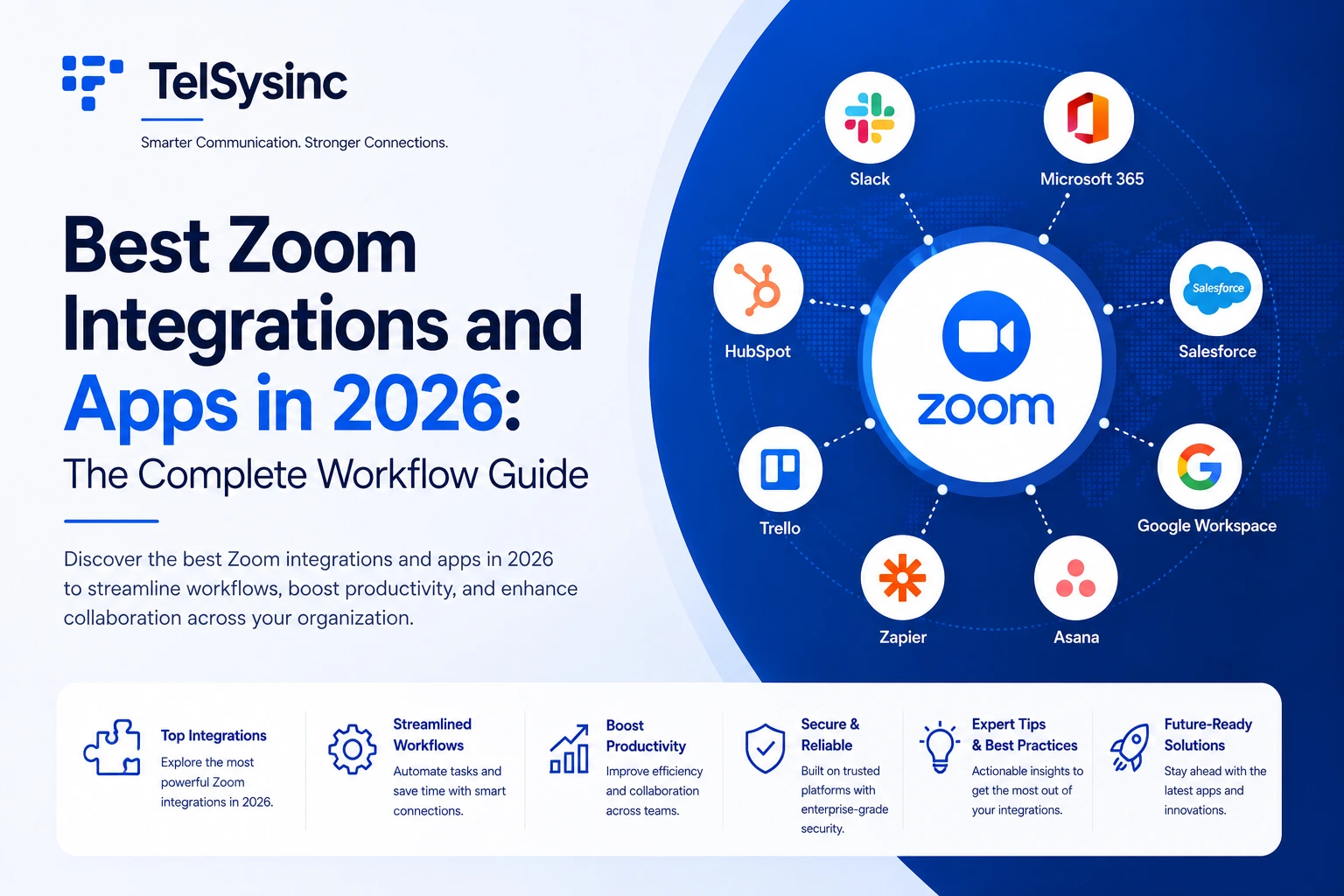
Why Zoom Integrations Matter More Than Ever in 2026
Zoom's App Marketplace now lists over 3,100 integrations — and that number is still growing. Nearly one in five new listings is an AI-powered app or agent, reflecting a fundamental shift in how Zoom connects to the tools around it.
But the real story in 2026 isn't just the marketplace size. It's what Zoom AI Companion 3.0 can do across those integrations. Organizations can now build and deploy custom AI agents without writing code, using prebuilt templates for sales, IT, and marketing functions — with agents capable of retrieving data, automating tasks, and triggering workflows across third-party systems including Salesforce, Slack, and ServiceNow. That changes the nature of an "integration" from a passive connection to an active, automated workflow.
This guide covers the most valuable Zoom integrations available right now — organized by use case — plus how to install them, how AI Companion interacts with them, and best practices for managing your Zoom app ecosystem without creating clutter.
What Is the Zoom App Marketplace?
The Zoom App Marketplace (marketplace.zoom.us) is Zoom's central hub for third-party integrations, apps, and automation tools. It spans calendars, communication platforms, CRMs, project management tools, file storage, transcription services, whiteboards, and automation platforms.
Apps in the Marketplace fall into two broad types:
Third-party integrations — connections built by external developers (Slack, Salesforce, Asana, Google, etc.) that link their platform to Zoom's API. These require authorization to connect your accounts.
Apps built by Zoom — first-party tools embedded directly in Zoom Workplace, including Zoom Whiteboard, Zoom Docs, Zoom AI Companion, and Zoom Scheduler. These are highlighted separately in the Marketplace and are typically included at certain plan levels without a separate subscription.
A key detail: admins can now connect to pre-built, third-party agents and use the Agent2Agent (A2A) protocol to get work done across applications — meaning AI Companion 3.0 doesn't just passively connect to external tools, it can actively execute tasks within them on your behalf.
Zoom Integrations by Category
Scheduling and Calendar
Scheduling is the most universal integration need, and Zoom has deep connections across every major calendar platform.
Google Calendar The Google Calendar + Zoom integration is the most-installed scheduling connection in the Marketplace. Install it and every new Google Calendar event gets a "Add Zoom Meeting" button. Meeting links are auto-inserted into invites, time zones are handled automatically, and participants click one link to join. The Gmail add-on extends this further — scheduling or launching Zoom calls directly from your inbox without opening the calendar.
Microsoft Outlook (Office 365) The Zoom Outlook plug-in adds a "Schedule a Zoom Meeting" button directly inside Outlook's event creation interface. For organizations running Microsoft 365, this is the most natural way to generate and send Zoom links without leaving Outlook. It supports both Windows and Mac desktop clients.
Calendly Calendly's Zoom integration automatically generates a unique Zoom meeting link for every appointment booked through your scheduling page — no manual link creation, no calendar gymnastics. Each booking fires a separate link (unlike using your Personal Meeting ID for everything), which improves security and avoids overlap between back-to-back meetings. This is particularly valuable for consultants, sales reps, or anyone running high-volume individual scheduling.
Acuity Scheduling / Doodle Similar to Calendly but with different interface preferences. Acuity (now part of Squarespace) suits service businesses needing payment integration alongside scheduling. Doodle works well for group availability polling before committing to a Zoom time. Both auto-generate Zoom links when appointments are confirmed.
Team Communication and Chat
Slack The Zoom–Slack integration is among the most widely deployed combinations in modern workplace tech. What it enables:
- Type
/zoomin any Slack channel to instantly start a Zoom meeting and post the join link - Schedule Zoom meetings from Slack and have them auto-posted to the relevant channel
- Receive Zoom meeting summaries, recordings, and AI-generated action items directly in Slack after the meeting ends
- Auto-create a private Slack channel per Zoom meeting for pre-meeting prep and post-meeting follow-up
This last feature is a 2025 addition that makes Zoom and Slack genuinely complementary rather than redundant. The meeting happens in Zoom; the ongoing context and follow-up live in Slack — and the handoff is automatic.
Microsoft Teams Zoom offers a Teams tab integration that lets users start or join Zoom calls from inside a Teams chat or channel. For organizations running a hybrid environment — where some teams prefer Teams and others use Zoom for client-facing meetings — this integration prevents the friction of switching platforms mid-workflow.
Gmail Beyond just calendar scheduling, the Gmail + Zoom add-on lets you launch instant Zoom meetings or schedule future ones directly from an email thread. Useful for customer-facing teams that live in email and need to escalate to a video call quickly.
Document Collaboration and File Sharing
Google Drive Connect Google Drive to Zoom Chat to share Drive files directly in channels and DMs — no link hunting, no permission confusion. During meetings, the AI Companion's agentic retrieval can search across your Drive files to surface relevant documents based on the meeting's context. Agentic retrieval capabilities can locate information across meeting summaries, transcripts, and notes in Zoom Workplace, as well as connected third-party apps, including Google Drive and Microsoft OneDrive.
Microsoft OneDrive and SharePoint The OneDrive integration enables file sharing in Zoom Chat and access within meetings. For organizations on Microsoft 365, SharePoint document libraries can be surfaced during Zoom meetings — allowing teams to reference shared files without switching to a browser. AI Companion 3.0 also includes OneDrive in its agentic search scope alongside Google Drive.
Dropbox and Box Both offer Zoom Chat integrations for sharing and accessing files stored in their platforms. The Dropbox integration also supports Dropbox Paper (collaborative docs) being opened and worked on during a Zoom session. Box is particularly popular in financial services and healthcare environments where its compliance-grade storage meets regulatory requirements.
Project and Task Management
Asana The Asana for Zoom integration converts meeting action items into Asana tasks without leaving the call. During a meeting, you can create tasks, assign owners, and set due dates — and they appear immediately in the relevant Asana project. After the meeting, AI Companion's post-meeting summary can feed directly into Asana task creation via Zoom's agentic workflows. For teams that live in Asana for project tracking, this closes the loop between discussions and deliverables.
Jira Engineers and product teams often use Zoom for sprint planning, demos, and bug reviews — where Jira is the system of record. The Jira + Zoom integration lets participants log issues, create tickets, and update story statuses from within Zoom Chat without navigating to the Jira board. Zoom AI Companion can also connect to Jira through AI Studio's custom agent builder for more advanced automated workflows.
Trello and Monday.com Both offer Zoom integrations for meeting-to-task handoffs. Trello's integration creates cards from meeting chat prompts. Monday.com's Zoom app syncs meeting scheduling with project timelines and can log meeting attendance directly in project boards — useful for project managers who need to track stakeholder engagement alongside deliverables.
ServiceNow For enterprise IT teams, the ServiceNow + Zoom integration is particularly powerful in 2026. Zoom's agentic workflows enable organizations to automate tasks, trigger cross-system workflows, and turn meetings, calls, and customer interactions into completed business outcomes — and ServiceNow is one of the key platforms where those workflows land. IT support teams can resolve tickets, update records, and escalate cases through Zoom AI Companion without switching to the ServiceNow interface.
Sales, CRM, and Marketing
Salesforce Salesforce's Zoom integration is one of the most mature and feature-rich in the Marketplace. It logs Zoom meeting and webinar activity directly in Salesforce contact and opportunity records, syncs webinar registrants as new leads, and can trigger CRM workflows based on Zoom meeting events. Sales teams using Zoom for demos and discovery calls gain automatic activity logging without manual CRM entry.
In 2026, the Salesforce + Zoom connection deepened further: custom AI agents can retrieve data, automate tasks, and trigger workflows across third-party systems including Salesforce, meaning AI Companion can now pull Salesforce account context into a meeting briefing or push meeting outcomes back to opportunity records automatically.
HubSpot HubSpot's Zoom integration adds Zoom webinar attendees as new contacts, logs calls in the HubSpot activity timeline, and tracks whether prospects attended or missed scheduled meetings. It also enables Zoom meeting scheduling directly from HubSpot contact records — so sales reps booking calls from the CRM get Zoom links generated automatically. For inbound-focused sales teams, HubSpot + Zoom creates a clean pipeline between marketing webinars and sales follow-up.
Pipedrive and Other CRMs Pipedrive offers a Zoom integration that syncs meeting scheduling with deal stages and logs call activity. Many other niche CRMs (Bonsai, CompanyHub, Copper) have built their own Zoom Marketplace integrations for similar purposes — enabling meeting logs, contact sync, and scheduling embedded in their specific platforms.
Transcription and AI Note-Taking
Otter.ai Otter.ai is one of the most popular third-party transcription tools in the Zoom Marketplace. It adds live captions visible to all participants, saves searchable transcripts to the cloud, and generates speaker-attributed summaries with highlighted action items after the meeting. Unlike Zoom's built-in transcription (which requires the host to enable it), Otter.ai can be set to join meetings automatically and capture everything without the host managing a toggle.
Fathom Fathom is a lightweight AI note-taker that automatically records, transcribes, and summarizes Zoom meetings. Its differentiator: a one-click "highlight" feature that lets participants flag important moments during the call, which Fathom then surfaces in the post-meeting summary. Free for individual users, with team plans for shared access to recordings and summaries.
Avoma Avoma focuses on the revenue team use case — transcribing Zoom sales and customer success calls, then organizing the content by topic (competitor mentions, pricing discussions, objections) with CRM sync built in. For sales managers, Avoma's conversation intelligence layer on top of Zoom provides coaching insights across the entire team's call library.
Zoom AI Companion (Built-in) For teams on paid Zoom Workplace plans, AI Companion handles transcription, meeting summaries, and action item extraction natively — without a separate third-party subscription. Since it's already connected to your meeting context, calendar, and Zoom Chat history, its summaries tend to be more contextually relevant than standalone note-takers that only see the audio stream.
The practical decision: use AI Companion as your default for internal meetings. For external customer calls where you need advanced conversation intelligence (topic tagging, sentiment analysis, CRM sync), tools like Fathom or Avoma add meaningful depth on top of what AI Companion provides.
Virtual Whiteboards and Visual Collaboration
Zoom Whiteboard (Native) Zoom's own whiteboard is the starting point. It offers an infinite canvas with 250+ templates (mind maps, flowcharts, Kanban boards), sticky notes, freehand drawing, shape recognition, and AI-generated boards from meeting discussions. Available during meetings via "Share Screen > Whiteboard" and outside meetings in the Zoom desktop app. Free plan limits you to three boards; Business plans unlock unlimited.
Miro Miro is the most feature-rich third-party visual collaboration platform, and its Zoom integration allows you to launch a Miro board directly inside a Zoom meeting. Teams use Miro for complex diagrams, design sprints, customer journey maps, and collaborative planning sessions that benefit from a more structured visual environment than Zoom's built-in whiteboard. The Zoom + Miro combination is common in product, design, and strategy teams.
Lucidspark / Lucidchart Lucid's suite integrates with Zoom for both whiteboarding (Lucidspark) and technical diagramming (Lucidchart). Lucidchart is particularly popular with engineering and architecture teams who need structured flowcharts, network diagrams, or ERDs that persist as living documents between meetings.
Polls, Q&A, and Audience Engagement
Slido Slido is an audience interaction platform for live polls, word clouds, quizzes, and Q&A. Its Zoom integration embeds the Slido interface as a side panel during meetings — no screen switching, no separate link. Attendees respond on their own devices (no Zoom account needed), and results appear in real time. Slido is particularly valuable for all-hands meetings, training sessions, and external webinars where engagement matters.
Mentimeter Similar to Slido but with a different visual design sensibility. Mentimeter's Zoom integration lets presenters show real-time poll results, word clouds, and rating scales within the meeting. Often preferred for customer-facing and public presentations where the polished visual output matters.
Automation and Workflow Platforms
Zapier Zapier connects Zoom to 7,000+ other apps through trigger-action automations that require no code. Common Zoom + Zapier workflows:
- When a Zoom webinar attendee registers → add them to a Mailchimp list
- When a Zoom meeting ends → send a Slack message with the recording link
- When a new Zoom Phone call is logged → create a HubSpot contact
- When a Zoom cloud recording is ready → upload it to a Google Drive folder
Zapier is the integration option for teams that need connections to niche or industry-specific tools not available in the Zoom Marketplace directly.
Make (formerly Integromat) Make offers more complex, multi-step automation scenarios than Zapier, with visual workflow diagrams and more granular data manipulation between steps. Teams with specific data transformation needs — reformatting meeting data before pushing it to a CRM, for example — often find Make more capable than Zapier for advanced scenarios.
Zoom Workflow Automation (Native) Zoom's built-in Workflow Automation, available in Zoom Workplace, allows multi-step automated flows with conditional logic — all within the Zoom platform. It handles use cases like: routing post-meeting summaries to specific Zoom Chat channels based on meeting topic, triggering AI Companion actions on a schedule, or alerting team leads when specific keywords appear in a Zoom Phone call transcript. No third-party account needed.
Zoom AI Studio (Custom Agent Builder) The newest and most powerful automation layer in Zoom's ecosystem. Custom AI Companion now offers the ability to create and deploy custom AI agents through a low-code builder, empowering admins to create and deploy tailored AI solutions with access to a comprehensive tooling library and pre-built templates for various workflows. Using the Agent2Agent (A2A) protocol, these custom agents can orchestrate work across Salesforce, ServiceNow, Slack, Google Drive, OneDrive, and Box — turning a meeting's output into completed work in downstream systems automatically.
How Zoom AI Companion 3.0 Changes the Integration Equation
Understanding Zoom's integration ecosystem in 2026 requires understanding how AI Companion 3.0 sits on top of it.
Zoom AI Companion 3.0 utilizes a federated AI approach that combines Zoom's own LLMs with leading third-party models from OpenAI and Anthropic, and users can also leverage open source models like NVIDIA Nemotron. This federated model means AI Companion draws on multiple intelligence sources rather than a single model — improving accuracy, particularly for specialized domains.
What this means for integrations practically:
Agentic retrieval across connected platforms. AI Companion can now search across meeting transcripts, Zoom Docs, Zoom Chat history, and connected Google Drive and OneDrive files simultaneously — surfacing the right information when you ask a question in a meeting, without you knowing where the answer lives.
Post-meeting task automation. The Post-Meeting Follow-Up prompt template automatically generates follow-up tasks and draft emails based on the meeting and to-do items identified during the session. Those tasks can be pushed to Asana, ServiceNow, or other connected tools through the workflow automation layer.
Daily Reflection Reports. Daily Reflection Reports summarize meetings, tasks, and updates to bring clarity to the workday — pulling information from across your connected app ecosystem so the morning brief is holistic rather than just a meeting recap.
Personal Workflow Builder. A low-code "personal workflows" designer with a drag-and-drop interface allows users to build state diagrams of work that include triggers, actions, and outcomes as executed by AI agents. This is in beta but represents the direction Zoom's integration story is moving: from passive connections to active, AI-orchestrated workflows.
How to Install Zoom Integrations: Step-by-Step
From the Zoom App Marketplace
- Go to marketplace.zoom.us or click Apps in the Zoom desktop client
- Browse by category or search for the specific app name
- Click the app listing and review what permissions it requires
- Click Install and authorize the connection (you'll typically be redirected to log into the third-party service)
- Once installed, the integration appears in your Zoom client — as an in-meeting toolbar button, a Chat bot, a sidebar app, or a new menu option depending on the integration type
In-Meeting App Access
During a meeting, click the Apps button in the meeting toolbar to access installed apps. Some integrations (Slido, Miro, Otter.ai) appear here for in-meeting use. Others (Asana task creation, Salesforce logging) may appear as panel options on the right side of the meeting window.
Admin Considerations for Teams
Account admins can control which Marketplace apps users can install. In the Zoom Admin Portal:
- Go to Account Management > Account Settings > Apps
- Set whether users can self-install apps, or require admin approval
- Review the list of installed apps across your account
For regulated industries (healthcare, finance, legal), admin-controlled app approval ensures that no integration sends meeting data to an uncertified third party without oversight.
Best Practices for Managing Zoom Integrations
Start with your actual bottlenecks
The most common integration mistake is installing apps out of curiosity rather than necessity. Before adding anything, identify the specific friction points in your current meeting workflow:
- Are you manually copying action items from Zoom to a project management tool? → Install Asana or Jira integration
- Are you manually adding webinar registrants to your CRM? → Install HubSpot or Salesforce integration
- Is scheduling Zoom calls a multi-step process? → Install Google Calendar or Calendly integration
Solve real problems. Three well-configured integrations create more value than fifteen half-deployed ones.
Review app permissions carefully
Every Marketplace app requests specific permissions when you install it. Read them. An app asking to "read and send chat messages on your behalf" has broader access than one only requesting "create meeting links." In corporate environments, have your IT or security team review permissions for any app that touches customer data, meeting transcripts, or file storage.
Keep your app list lean and documented
Unused integrations create noise and potential security surface area. Establish a quarterly review of installed apps — anything not actively used in the past 60 days should be removed. Maintain a simple internal document noting which apps are installed, who owns them, and what they do, so new team members understand the ecosystem.
Train your team on key integrations
The value of a Zoom integration is only realized if people use it. For high-impact integrations like Slack + Zoom or Asana + Zoom, run a short team demo — show specifically where the command or button lives and what it does. A 10-minute walkthrough saves months of underutilization.
Use AI Companion as the connective tissue
Rather than installing multiple separate note-taking, task-creation, and follow-up apps, consider AI Companion's built-in capabilities first (included free on paid plans). It may replace several third-party tools and reduce the complexity of your integration stack. Add specialized third-party tools only when AI Companion's native capabilities fall short for specific workflows.
Top Zoom Integrations at a Glance
The Bottom Line: Build an Integration Stack, Not a Junk Drawer
The Zoom App Marketplace with 3,100+ integrations is impressive. But the goal isn't to connect everything — it's to connect the right things.
Start with the integrations that address your team's actual daily friction: scheduling (Google Calendar or Calendly), communication (Slack), file access (Google Drive or OneDrive), and task follow-up (Asana or Jira). Those four categories solve the most common post-meeting workflow problems without creating complexity.
Then let AI Companion 3.0 do the connective work. With agentic retrieval across your connected platforms, automated follow-up task generation, and the ability to orchestrate workflows in Salesforce, ServiceNow, and other enterprise systems — Zoom's AI layer increasingly handles the integration work that previously required manual steps or complex Zapier chains.
The result: fewer app switches, cleaner follow-up, and meetings that actually translate into completed work.
Explore the Zoom App Marketplace to find the integrations that fit your stack — and start with the few that will genuinely change how your team works, rather than the full catalog.