
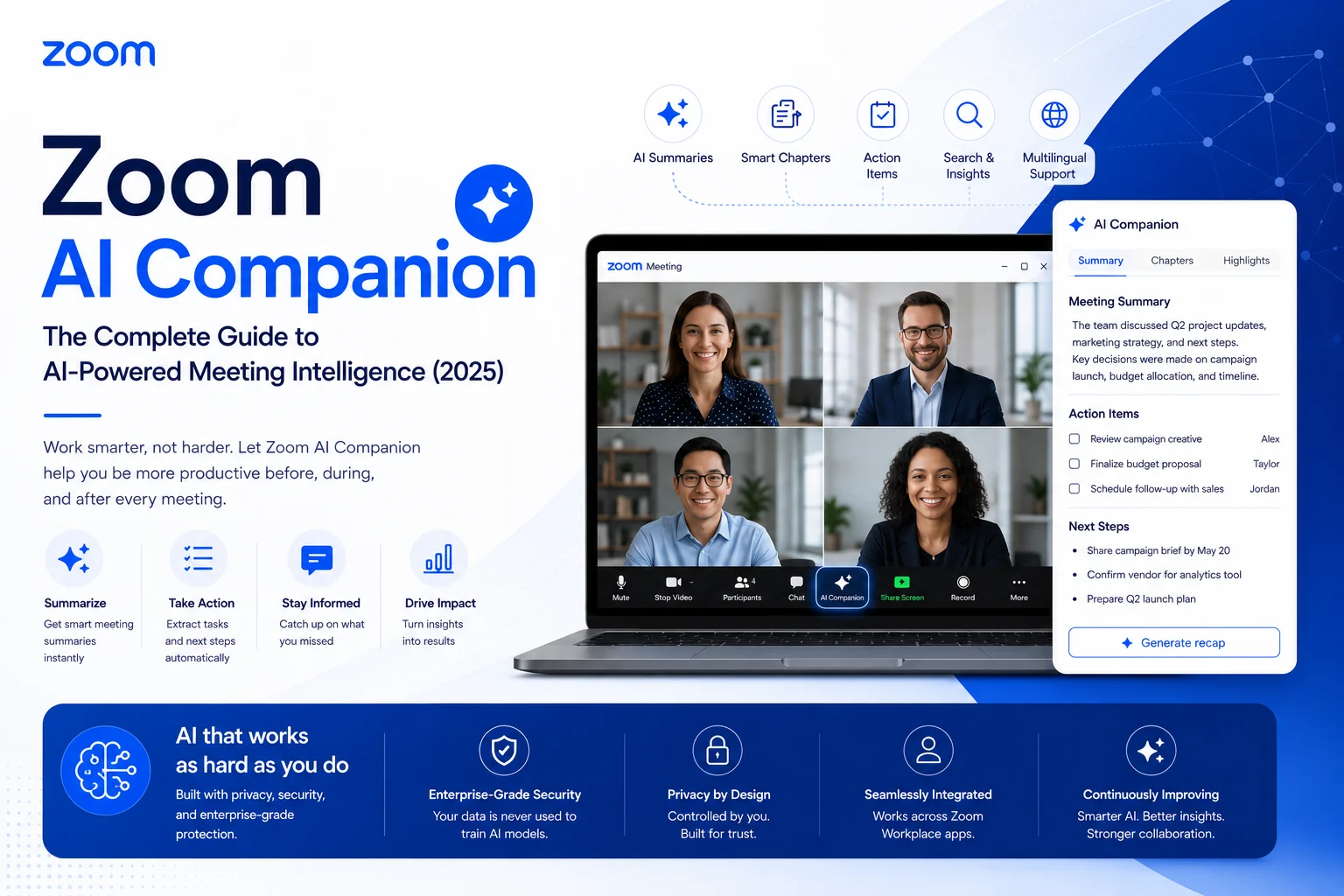
Introduction: The Meeting Problem That AI Finally Solves
Here's a scenario most knowledge workers know well: you finish a 45-minute call, everyone nods, the meeting ends — and within an hour nobody agrees on what was decided or who was supposed to do what. Not because people weren't paying attention, but because running a meeting and documenting it simultaneously is genuinely hard.
That's the problem Zoom AI Companion is built to eliminate. Not by adding another tool to your workflow, but by handling the documentation layer invisibly, inside the meeting you're already in.
Zoom AI Companion is the platform's built-in AI assistant — included at no extra cost with paid Zoom Workplace plans — that transcribes meetings in real time, generates summaries and action items automatically, answers in-meeting questions, and now, with the release of AI Companion 3.0 in December 2025, executes post-meeting workflows across connected apps without anyone prompting it. This guide covers everything you need to know: what it actually does, how to set it up, what it costs (and what it doesn't), and how it compares honestly to Microsoft Copilot and Google Gemini.
What Is Zoom AI Companion?
Zoom AI Companion is a built-in AI assistant for Zoom Workplace that works before, during, and after meetings — generating real-time transcriptions, summaries, action items, and automated follow-up workflows without requiring a separate subscription or additional software.
It launched in September 2023 and has since gone through two major generational updates, with AI Companion 3.0 releasing in December 2025. The key architectural difference from generic AI tools is context. Zoom AI Companion doesn't just know what you typed into a chat window — it knows your meeting agenda, chat history, previous meeting summaries, connected documents, and calendar. When it generates a post-meeting summary, it's working from the actual transcript of your discussion, not a blank-slate prompt.
What also sets it apart commercially is the pricing model. Microsoft's Copilot for Teams meetings requires a separate Copilot license (around $30/user/month on top of your M365 subscription). Zoom AI Companion is included with any paid Zoom Workplace plan — no separate line item, no per-user add-on fee for the core features. For organizations already paying for Zoom, that's a significant value differential.
The AI Companion 3.0 Shift: From Assistant to Agent
The December 2025 release of AI Companion 3.0 represented a meaningful change in how Zoom frames the product. Previous versions were reactive — you asked a question, it answered. Version 3.0 introduced agentic workflows: the system now takes actions automatically based on meeting content, without waiting to be asked.
AI Companion 3.0 includes agentic retrieval capabilities that can locate information across meeting summaries, transcripts, and notes in Zoom Workplace, as well as connected third-party apps like Google Drive and Microsoft OneDrive — without users needing to upload transcripts or write detailed prompts.
The Post Meeting Follow Up prompt template automatically generates follow-up tasks and drafts email messages based on the meeting and to-do items, while the Daily Reflection Report prompt summarizes meetings, tasks, and updates to bring clarity to the workday.
Zoom's CEO Eric Yuan has described this evolution as building an "AI-first system of action going beyond summarization." Whether you buy the marketing framing or not, the practical change is real: meetings now generate structured outputs automatically, not just when someone remembers to ask.
Zoom AI Companion Features: What It Actually Does
Automated Meeting Summaries and Action Items
At the end of a meeting, AI Companion generates a concise summary of key discussion points and extracts action items — formatted, shareable, and ready to send. These can be automatically emailed to all attendees or posted in the meeting's Zoom Chat thread, depending on your configuration.
The quality is noticeably better than early versions. Independent benchmarking by TestDevLab found that Zoom AI Companion scored 81.35% overall — ahead of Microsoft Copilot (80.75%), Webex (80.20%), and Teams Intelligent Recap (78.63%) — and showed 16% fewer summary errors than Copilot. That's a meaningful gap, not just a rounding difference.
In-Meeting Q&A: "Catch Me Up"
During a live meeting, any participant can click the AI Companion icon and ask questions about what's been discussed — "Catch me up," "What are the action items so far?", "Was my name mentioned?" — and get an answer in real time without interrupting the conversation.
This is particularly useful for people who join a few minutes late (which is most people, most of the time). Instead of someone stopping the meeting to recap, the latecomer reads a quick AI summary and jumps in. Response speed matters here: Zoom averaged 4,716ms in-meeting response time versus Microsoft Teams' 9,270ms — nearly twice as fast.
The feature supports 30+ languages, making it genuinely useful for international teams where not everyone is working in their first language.
Smart Recording with Chapters and Highlights
When meetings are recorded to the cloud, AI Companion post-processes the recording to create smart chapters (organized by topic), highlighted key moments, and extracted action items. A 90-minute all-hands meeting becomes navigable in seconds — jump directly to the product roadmap discussion or the Q&A section without scrubbing through video.
For anyone who manages a team that records training sessions, client calls, or recurring project meetings, this alone recovers meaningful time.
My Notes: Cross-Platform AI Note-Taking
With new AI note-taking capabilities, users can bring AI Companion to their in-person meetings and meetings outside of Zoom on platforms like Microsoft Teams and Google Meet. This is new in 3.0 and genuinely changes the value proposition.
Previously, Zoom AI Companion only worked inside Zoom meetings. Now, you can open Zoom on your mobile device in a Teams meeting or a client's Webex call and capture the discussion. AI Companion transcribes it and syncs it back to your Zoom account — so your notes, action items, and summaries all live in one place regardless of which video platform hosted the meeting.
This is the clearest answer to the biggest practical criticism of platform-native AI: that it stops working the moment you're not on that platform.
Agentic Retrieval: Search Across Everything
Using agentic retrieval capabilities, the assistant can locate information across past meetings, notes in Zoom Workplace, as well as connected third-party apps including Google Drive and Microsoft OneDrive. Gmail and Outlook integration is coming.
In practice: ask "What did we decide about the Q3 budget in last month's planning call?" and AI Companion retrieves the relevant section from your past meeting summary — without you specifying which meeting, which date, or where the notes were saved.
AI Workflows and Automated Follow-Ups
AI Companion 3.0 now executes tasks automatically, connects to 16 enterprise apps including ServiceNow and Asana, and delivers daily reflection reports without prompting. This moves the tool from documenting meetings to acting on them: CRM updates, task creation, follow-up email drafts, and support ticket generation can all trigger automatically from meeting content.
For sales teams logging calls in Salesforce, or support teams creating Zendesk tickets after customer calls, this removes the manual data entry that usually happens (inconsistently) after meetings end.
Multilingual Support and Live Captions
AI Companion provides live captions in 30+ languages and supports real-time translation, making meetings accessible to hearing-impaired participants and non-native speakers without additional tools or configurations. This is particularly relevant for globally distributed teams where English-only transcription would exclude or disadvantage members.
Who Benefits Most from Zoom AI Companion?
Sales and account management teams get the most immediate return. After every customer call, AI Companion produces a summary of commitments made, questions asked, and next steps agreed — automatically. Reps spend less time on call notes and more time on the actual sales process.
Project managers running recurring standups and check-ins can stop worrying about capturing decisions in real time. The AI summary serves as the meeting record, with action items distributed automatically. Anyone who missed the call gets the same information as someone who attended.
Remote and hybrid teams dealing with time-zone-distributed collaboration benefit from async catch-up features — people can review AI summaries of meetings they couldn't attend without requiring a recording review or a recap from a colleague.
Training and L&D teams can use smart chapters and recording highlights to make long training sessions navigable. Learners can jump directly to the relevant sections rather than watching hours of content linearly.
Executives and managers with back-to-back schedules benefit from the Daily Reflection Report, which summarizes the day's meetings, outstanding tasks, and open items in a single digest.
Setting Up Zoom AI Companion: Step by Step
Admin Enablement
AI Companion features are off by default and must be enabled by an account administrator. In the Zoom admin portal:
- Navigate to Account Management > Account Settings
- Select the AI Companion tab
- Enable the specific features you want available: Meeting Summary, Meeting Questions (Q&A), Smart Recording, and so on
- Configure whether features are on by default for all meetings or whether hosts must turn them on manually
- Set permissions for whether participants can request AI Companion if a host hasn't started it
Zoom also supports auto-enabling — an admin can require that every scheduled meeting automatically starts with AI Companion active, removing the need for hosts to remember to turn it on.
For Hosts During a Meeting
Once enabled at the account level, hosts see an AI Companion icon (a sparkle/diamond symbol) in the Zoom meeting toolbar. Click it to open the AI Companion panel, select which features to activate (summary, Q&A, or both), and click Start AI Companion. Participants will see a visual indicator when AI is active — Zoom's policy requires this transparency.
Hosts can stop AI Companion at any point during the meeting. Co-hosts have the same controls. Participants cannot start or stop it themselves, but can request that the host do so through the AI Companion panel.
For Users: Personal Settings
Individual users can configure their own preferences for how summaries are delivered (email, Zoom Chat, or both), set up My Notes for capturing non-Zoom meetings, and manage their connected apps for agentic retrieval. These settings live under Settings > AI Companion in the Zoom desktop app or web portal.
Zoom AI Companion Pricing: What's Included and What Costs Extra
Included with Paid Zoom Workplace Plans
The core AI Companion features — meeting summaries, in-meeting Q&A, smart recording, live captions, My Notes, and Daily Reflection Reports — are included with any paid Zoom Workplace plan (Pro, Business, Business Plus, Enterprise). No additional license fee.
Zoom Workplace paid plans and AI Companion standalone plans include My Notes, an AI note-taking tool for Zoom Meetings and third-party meeting platforms including Microsoft Teams and Google Meet.
Free (Basic) Zoom accounts do not include AI Companion features.
Custom AI Companion Add-On (~$12/user/month)
The Custom AI Companion add-on unlocks capabilities beyond the standard package:
- Custom AI agents — build or deploy agents connected to specific tools (Jira, Salesforce, ServiceNow)
- Cross-platform meeting summaries — summarize recordings from Teams, Meet, and Webex meetings
- Advanced enterprise knowledge retrieval — query across a broader set of connected apps and internal knowledge bases
- Tailored AI workflows — trigger specific automations based on meeting content, customized to your org's processes
For organizations that want Zoom AI to function as a true enterprise workflow layer — not just a meeting notes tool — the Custom add-on is what makes that possible.
Standalone AI Companion Plan
Zoom launched a $10 standalone AI Companion option, making the core features accessible to users who may not need the full Zoom Workplace bundle. This is particularly relevant for individuals or small teams whose primary use case is AI meeting notes rather than the full communications platform.
The Honest Comparison
Microsoft Copilot is the strongest option if your organization is fully committed to Microsoft 365 — Teams, SharePoint, OneDrive, Outlook. The integration depth with M365 apps is unmatched, and if you're already paying for Microsoft 365 Business Premium, the Copilot add-on cost is easier to justify. The significant downside is cost: Zoom AI Companion, Teams Copilot Intelligent Recap, and Google Meet's Gemini notes cost nothing extra if you're on the right plan — but they stop working the moment you're on a different platform. Copilot doesn't work outside the Teams ecosystem at all.
Google Gemini handles meeting notes elegantly within Google Workspace — a checkbox before the meeting starts, and notes appear in Drive linked to your Calendar event automatically. For teams already running on Google Workspace, Gemini's "Take Notes for Me" works seamlessly inside that workflow. Outside Google's ecosystem, though, it stops. Gemini is tethered to the Google ecosystem, lacking cross-platform compatibility with Zoom, Teams, or Slack huddles.
Zoom AI Companion's clearest advantage is cross-platform reach combined with included pricing. On response stability — all participants receiving consistent answers — Zoom led at 96% versus Teams at 89%. The addition of cross-platform note-taking in 3.0 directly addresses the biggest reason teams gave for using third-party tools like Otter.ai or Fireflies instead. If your meetings happen primarily on Zoom but occasionally on Teams or Meet, Zoom AI Companion now covers the whole picture from a single interface.
The one honest caveat: Zoom AI Companion can fail to accurately transcribe or even generate summaries occasionally without alerts, and some advanced integrations require the Custom AI add-on, which raises the per-user cost. Always factor your actual configuration cost, not just the base plan.
Privacy and Data Security: What Zoom Does with Your Meeting Data
This question comes up often, and Zoom's position on it is clear: meeting content is used to generate outputs for you, not to train AI models.
According to Zoom's documentation, the platform does not use audio, video, chat, screen sharing, or other meeting content to train Zoom's or third-party AI models. The AI Companion uses the speech-to-text transcript of a meeting to generate summaries and answer questions, and that data is processed securely and discarded after output is delivered (unless you opt to store transcripts, which is a separate setting).
AI Companion 3.0 utilizes Zoom's federated AI approach that combines the power of Zoom's own LLMs and SLMs with leading third-party LLMs from OpenAI and Anthropic, as well as leading open-source models like NVIDIA Nemotron. This federated approach lets Zoom route tasks to the best-performing model for that specific job rather than relying on a single provider — which is how Zoom achieved a 48.1% score on Humanity's Last Exam, a 2.3-point improvement over tool-integrated frontier models such as Google's Gemini 3 Pro.
For organizations in regulated industries (healthcare, financial services, education), Zoom's documentation notes that AI Companion may have reduced availability in certain verticals where data handling requirements are stricter. Verify your organization's specific compliance requirements before enabling AI features, and communicate clearly to meeting participants that transcription is active.
Limitations Worth Knowing Before You Deploy
No breakout room support. AI Companion doesn't work inside breakout rooms — only at the main meeting level. If your team uses breakouts for small-group work, those discussions won't be captured automatically.
Host-controlled by default. Participants can't start AI Companion themselves — only hosts and co-hosts can. If your team needs AI active in every meeting, configure auto-enable at the admin level rather than relying on hosts to remember.
Audio quality affects accuracy. Poor microphone quality, background noise, or heavy accents can lead to transcription errors that flow into the summary. In noisy environments or with low-quality audio setups, review summaries before distributing them.
Platform coverage is expanding but not complete. Cross-platform note-taking currently covers Microsoft Teams and Google Meet. Cisco Webex integration is planned but wasn't available at the time of writing.
Advanced integrations require the Custom add-on. If your use case involves connecting to Salesforce, triggering Jira tickets from meeting notes, or building custom agentic workflows, the standard plan won't cover it. Factor in the Custom AI Companion add-on cost when evaluating total cost of ownership.
Zoom AI Companion vs. Third-Party AI Note-Takers (Otter, Fireflies, Fathom)
Third-party tools like Otter.ai, Fireflies, and Fathom appear as a visible bot participant in your meeting — other attendees see them join. They work across platforms (Zoom, Teams, Meet), most have generous free tiers, and some offer more detailed CRM logging than Zoom's native integration.
Zoom AI Companion is invisible to participants (except for the AI active indicator) and requires no additional software setup. It's native to the meeting rather than joining it as a bot, which removes friction and avoids the occasional awkwardness of a bot joining a client meeting.
The decision comes down to platform coverage and depth. If all your meetings happen on Zoom, AI Companion is simpler and already paid for. If your team is genuinely split across Zoom, Teams, and Meet — and you need consistent AI notes across all three — a third-party tool that follows you everywhere may still have an edge, particularly for teams that can't or won't enable cross-platform My Notes.
What's Coming Next: Zoom AI Companion Roadmap
The direction of Zoom's AI investment is clear: less passive documentation, more active workflow orchestration.
Near-term roadmap items confirmed or in beta include:
- Gmail and Outlook integration for agentic retrieval and post-meeting email drafting
- Agentic features for Zoom Docs (Canvas), enabling AI to update project documents from meeting content automatically
- Expanded enterprise app connectors beyond the current 16 (ServiceNow, Asana, Google Drive, OneDrive)
- Lifelike AI avatars for asynchronous meeting-style communications
- Deeper context memory — learning patterns from past meetings to proactively surface relevant information before future calls
This capability positions Zoom closer to platforms like Salesforce Einstein or ServiceNow's Now Assist — allowing IT teams to tailor AI behaviors such as automatically generating a support ticket post-meeting, querying CRM for customer history, or interfacing with ERP for procurement updates.
The broader trajectory is toward what analysts are calling "continuous meeting intelligence" — where the value of a conversation doesn't end when the call does, but flows automatically into the systems your team uses to actually get work done.
Conclusion: Should You Enable Zoom AI Companion?
If your organization already has a paid Zoom Workplace plan, the question isn't really whether to enable Zoom AI Companion — it's why you haven't already. The core features are included, the setup takes minutes, and the immediate impact on post-meeting documentation is tangible from the first call.
The more considered question is how far to go. For most teams, the standard AI Companion features — meeting summaries, action items, in-meeting Q&A, smart recording — deliver clear value with zero additional cost. The Custom AI Companion add-on makes sense if you need Zoom AI to become part of your broader workflow automation stack: CRM logging, ticket creation, cross-app retrieval.
What's harder to argue with is the benchmark data: Zoom's AI Companion leads Microsoft Copilot on summary accuracy, in-meeting response speed, and response consistency across participants — while costing significantly less when you factor in Copilot's separate licensing requirement. For Zoom-centric organizations, that's a straightforward value case.
Enable it. Run it in pilot meetings. Review the summaries against your own recollection. Once your team sees what it captures automatically, the question shifts from "should we use this?" to "how did we manage without it?"