
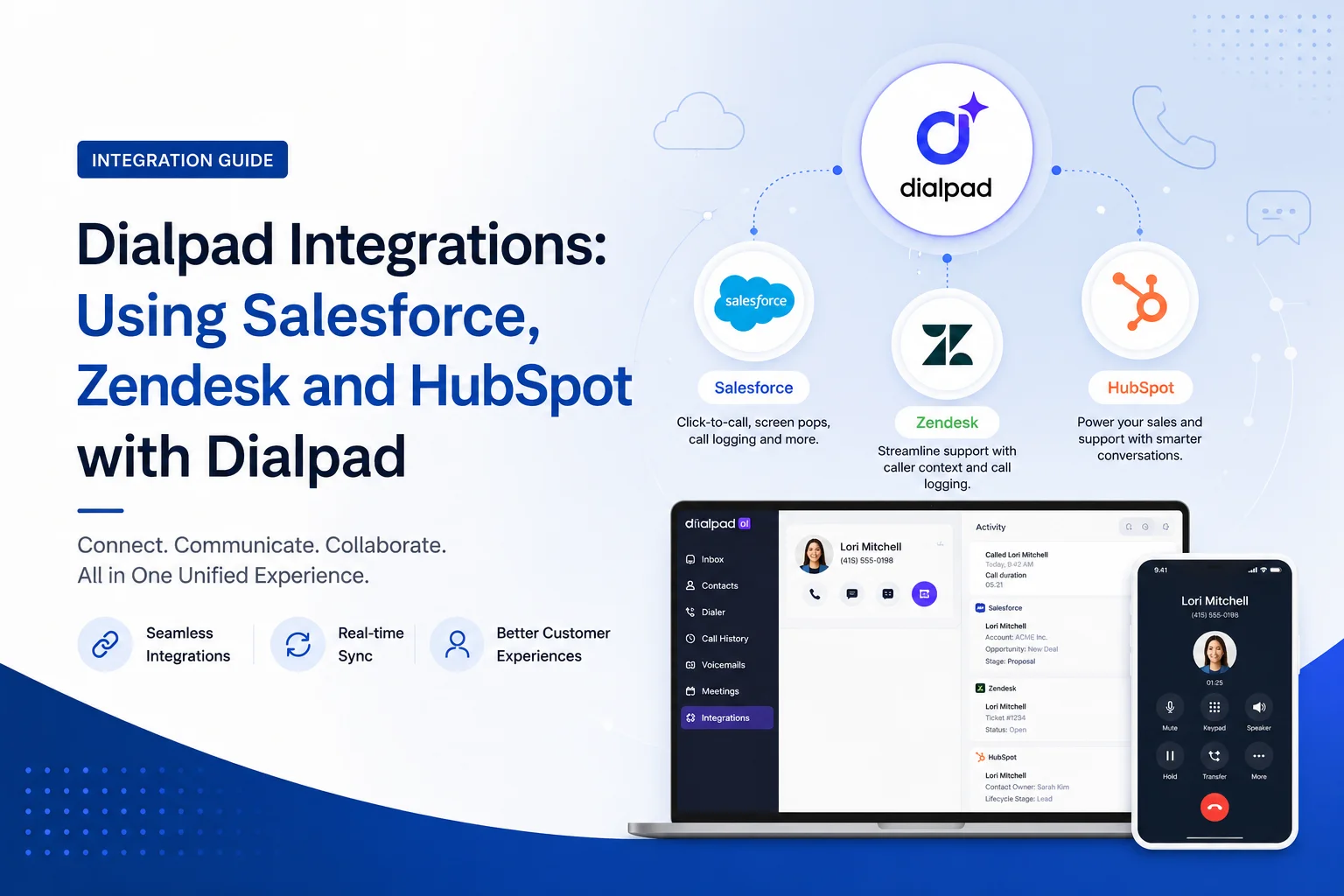
Dialpad Integrations with Salesforce, Zendesk, and HubSpot: The Complete 2026 Guide
Every time an agent has to tab away from a call to update a CRM record, you lose a little bit of context — and a little bit of the customer's patience. That's the problem Dialpad's CRM integrations are built to solve. By connecting Dialpad directly to Salesforce, Zendesk, or HubSpot, your team gets calling, texting, and AI-generated call notes inside the same window where they already manage customer relationships.
This guide walks through exactly how each integration works, what it takes to set one up, where the limitations are (because every integration has them), and how the three compare side by side. Whether you're evaluating Dialpad for the first time or troubleshooting a setup that isn't syncing the way it should, you'll find the specifics here — plan requirements, matching logic, AI features, and the quirks that don't always show up in the marketing copy.
Why Bother Integrating Dialpad with Your CRM?
Because manual logging doesn't scale. Without an integration, an agent has to finish a call, switch to the CRM, remember what was said, and type it all in before the details get fuzzy. Multiply that by 40-plus calls a day and you've got a support or sales team spending a meaningful chunk of its shift on data entry instead of talking to customers.
Connect Dialpad to your CRM and that friction mostly disappears:
- Calls, texts, and voicemails log automatically to the right lead, contact, or ticket — no copy-pasting required.
- Reps see customer history the moment the phone rings, including past interactions, open deals, or open tickets.
- AI-generated summaries and action items show up on the CRM record, so managers and teammates don't have to listen to a recording to know what happened.
- Fewer things fall through the cracks, because activity is tied to a system of record instead of living only in someone's memory (or a sticky note).
Dialpad puts it simply: the integrations give you "the functionality of a communications platform and contact center — right inside your CRM." That's the pitch. Below is what actually happens when you turn each one on.
Dialpad + Salesforce: Calling from Inside Your CRM
What It Does
The Dialpad–Salesforce integration is built as a Salesforce Open CTI app, which means it plugs into Salesforce Lightning (or Classic) as a softphone widget rather than a bolted-on browser extension. Reps can click a phone number on a Lead, Contact, or Case and dial straight from the record. On inbound calls, the widget pops up with caller ID, past interaction history, and Dialpad's call controls, all without leaving the Salesforce tab.
The integration is bundled with Salesforce's own Sales Cloud and Service Cloud, so it works whether your team is running an outbound sales motion, an inbound support desk, or both at once.
What You Need Before You Start
A few requirements catch teams off guard, so check these first:
- A Dialpad plan that actually includes CRM integrations. As of 2026, Dialpad's entry-level Standard plan ($15/user/month) does not include Salesforce, Zendesk, or HubSpot connectors — you need at least the Pro plan (around $25/user/month billed annually) or Enterprise (custom pricing) to unlock them.
- Salesforce Enterprise or Unlimited edition. Lower Salesforce tiers don't support the Open CTI framework Dialpad relies on.
- The Dialpad for Salesforce package, installed from the Salesforce AppExchange and assigned to your users.
- The right permission sets. In Salesforce's App Manager, add the "Open CTI Softphone" utility item to your Lightning apps (Dialpad recommends renaming it to "Dialpad" for clarity), then assign the "Dialpad for Salesforce" Admin or Standard permission set to the relevant profiles.
- API access enabled. Dialpad doesn't store your Salesforce data — it queries it in real time, so if API access is off, the integration won't function.
Once installed, your Salesforce admin enables Dialpad in the Call Center settings for each user profile, and reps are ready to make and receive calls from inside Salesforce.
Heads up if you're on older Salesforce automations: Salesforce retired Workflow Rules and Process Builder at the end of 2025. If any of your Dialpad-related call logging automations were built on those tools, they need to move to Flow Builder — Salesforce's current low-code automation engine — or they'll silently stop working.
How Call Logging and Contact Matching Work
Dialpad tries to match every caller to an existing Salesforce Lead, Contact, Account, or Case using name, phone number, or email. Admins control the match priority in Dialpad's admin console. A few configuration choices worth knowing about:
- Auto-create on no match. If nobody exists in Salesforce with that number, Dialpad can automatically spin up a new Contact — useful for inbound sales lines, less useful if you want tighter control over your database.
- Strict vs. loose matching. You can require an exact match before a call logs, or allow all calls to log (with unmatched calls falling under a generic name field).
- Mandatory notes. Admins can force agents to enter a subject and notes before ending a call, which is a simple way to improve data quality without relying on people remembering to do it.
- Task vs. Call Log object. Logging as a standard Salesforce Task keeps things simple. Logging as a "Dialpad Call Log" custom object captures richer data — including the AI transcript — but requires the custom object to be part of your org's setup.
If a call doesn't match anything (or gets dropped before it can), agents can go back into Dialpad's "Unlogged Calls" inbox and manually attach it to the right record later. Nothing has to be lost just because the match failed in real time.
Where the AI Actually Adds Value
This is the part that differentiates Dialpad's Salesforce integration from a basic click-to-dial tool. When a call logs as a Dialpad Call Log object, Dialpad attaches:
- An AI Recap — a plain-language summary of what the call covered
- Action Items — next steps pulled out of the conversation automatically
- Call outcome and purpose tags, so managers can filter activity by type without listening to anything
- A link to the recording or transcript, so anyone on the account can review the actual conversation later
Admins need to add these Dialpad AI fields to the relevant Salesforce page layouts — they don't show up automatically just because the integration is installed. It's a five-minute setup step that a lot of teams skip, and then wonder why nobody's using the AI notes.
Best Practices for a Smooth Salesforce Setup
- Standardize phone number formatting (E.164, e.g., +1 800 123 4567) across your Salesforce records. Inconsistent formatting is the single most common reason matching fails.
- Train reps to "rematch" on the fly. If Dialpad grabs the wrong record because two contacts share a number, agents should know how to correct it mid-call rather than leaving a task attached to the wrong account.
- Set a fallback owner. If no match is found and auto-create is off, decide in advance where that activity should land — an admin queue, a default rep, anywhere but nowhere.
- Confirm mic and pop-up permissions in the browser. This sounds obvious, but it's the top ticket Dialpad support fields for "the softphone isn't working."
Dialpad + Zendesk: Turning Calls into Tickets
What It Does
Where the Salesforce integration is built for sales-style record logging, the Zendesk integration is built around tickets — the core unit of support work. Agents get a Dialpad sidebar app inside Zendesk Support that lets them place and receive calls, send texts, and see a caller's open and closed ticket history the second the phone rings.
Inbound calls can automatically generate new Zendesk tickets, and voicemails can do the same, so a missed call doesn't just vanish — it becomes something an agent can follow up on.
Setup and Requirements
- A Zendesk admin installs the Dialpad app from the Zendesk Marketplace.
- Dialpad's company admin turns on the Zendesk integration under My Company > Integrations > Zendesk, with the option to set exceptions by office or user group.
- Each individual agent connects their accounts — Zendesk inside Dialpad, and Dialpad inside Zendesk — using matching admin credentials.
- Agents need Zendesk's Talk Partner Edition and standard ticket access for the integration to function fully.
Once both sides are connected, opening a contact in either Dialpad or Zendesk automatically pulls up matching records from the other.
How Calls Become Tickets
Admins configure ticket creation under Dialpad's Call Logging settings. In practice:
- An inbound call on a support line can automatically open a new Zendesk ticket, tagged with a "Call" subject and any notes the agent adds, linked to the caller's user profile.
- Agents can also manually create a ticket mid-call or right after, straight from the Dialpad widget.
- Every ticket created this way includes call details, agent notes, and a link to the recording.
- Missed calls without a voicemail get routed to an admin or round-robin queue rather than disappearing.
A couple of quirks worth flagging: calls under 5 seconds are ignored by design (to avoid cluttering tickets with pocket-dials and hang-ups), and calls between two internal Dialpad users typically don't generate external tickets at all.
Calling and Texting Without Leaving the Ticket
Inside Zendesk's agent interface, the Dialpad widget adds a phone icon next to any number on a ticket. Click it, and the call starts. Incoming calls trigger an "Answer or Ignore" pop-up, and once answered, the widget stays open so agents can type ticket notes while talking. Agents can also send SMS messages from the same panel — handy when a quick text resolves something faster than a callback would.
Contact Sync: What Syncs and What Doesn't
Dialpad matches callers to Zendesk end-users by phone number. If there's no match, it creates a new Zendesk contact so future calls link automatically. If Dialpad guesses wrong, agents can use the "Wrong Contact?" link in the widget to search and reassign.
One important limitation: sync only flows one direction for edits. If a customer's contact details change, update them in Zendesk — Dialpad reads that data at call time but doesn't push edits back. Think of it as "read at the moment of the call," not a live two-way sync.
Zendesk Integration Limitations to Know Upfront
- Missed calls without voicemail don't create tickets.
- Shared/department line calls only log automatically if a connected, online agent takes the call; otherwise, it falls to a fallback admin.
- Agents need end-user creation rights in Zendesk for the auto-create-contact feature to work.
- Microphone permission in-browser is required — the same troubleshooting step as Salesforce.
Dialpad + HubSpot: Built for Sales Pipelines
What It Does
The HubSpot integration is aimed squarely at sales teams working in HubSpot's Sales Hub. Every call — inbound or outbound — logs automatically as an activity on the matching contact or company timeline. Reps can also create new HubSpot contacts directly from Dialpad, attach calls to specific deals, and glance at HubSpot activity from the Dialpad sidebar without switching apps.
Setup and Requirements
- Available on Dialpad Support, Sell, or Connect (Pro/Enterprise) plans.
- Works with any HubSpot Sales Hub tier — Free, Starter, Professional, or Enterprise.
- A Dialpad Company Admin enables it under My Company > Integrations > HubSpot, then authorizes the connection through HubSpot's login flow.
- Admins configure which offices can use the integration and set default logging behavior (always log as activity, include recordings, etc.).
Once it's connected at the company level, individual agents don't need to log in separately — the HubSpot widget just appears inside their Dialpad app.
Contact Matching and Call Logging
Dialpad searches HubSpot for a matching contact by phone, email, or name during a call:
Agents can override any of this with the "Wrong Contact" button in the sidebar, reassigning the call to the correct record or spinning up a new one on the spot.
Once matched, the call logs with start/end time, links to any recording or voicemail, and space for the rep to add notes or tie the call to a specific deal — all visible right on the contact's HubSpot timeline alongside emails and tasks.
What HubSpot's Integration Doesn't Do
Worth knowing before you set expectations with your team:
- No SMS logging. HubSpot doesn't have a native SMS activity type, so text messages sent from Dialpad won't show up in HubSpot at all.
- Deals must already exist. Dialpad can only attach a call to a deal that's already linked to the contact — it won't create a new deal on your behalf.
- No due dates on tasks. HubSpot's API doesn't currently support setting deadlines on tasks created by external apps, so any task you log from Dialpad won't have one.
- Internal calls don't log. Same as Zendesk — calls between two people on your own Dialpad account skip HubSpot entirely.
Salesforce vs. Zendesk vs. HubSpot: Feature Comparison
The pattern that emerges: Salesforce leans hardest into AI-enriched record-keeping, Zendesk is built around ticket creation for support workflows, and HubSpot keeps things simple and activity-based for sales pipelines. None of the three fully replicates the others' strengths — pick based on which workflow (sales pipeline, support queue, or CRM record depth) matters most to your team.
Best Practices That Apply Across All Three Integrations
- Standardize your phone number format. Use E.164 formatting (+1 800 123 4567) everywhere. This alone fixes the majority of "why didn't this call match" support tickets.
- Train agents on manual rematching. Every integration has a "wrong contact" fallback — make sure your team actually knows where to find it before their first mismatched call, not during it.
- Set fallback owners for orphaned activity. Decide upfront where unmatched calls, tickets, or activities should land so nothing gets stuck in limbo.
- Turn on the AI fields where they exist. Salesforce's AI Recap and Action Items fields don't appear automatically — someone needs to add them to your page layouts.
- Confirm your Dialpad plan tier before promising CRM features to your team. The Standard plan doesn't include any of these integrations; budget for Pro or Enterprise if CRM connectivity is a requirement.
- Run a test call for each real-world scenario — new customer, existing contact, internal call — before rolling the integration out company-wide.
- Document the quirks. Things like "calls under 5 seconds don't log" or "internal calls skip HubSpot" are easy to forget and hard to troubleshoot later if nobody wrote them down.
Final Thoughts
None of these three integrations are identical, and that's by design — Salesforce, Zendesk, and HubSpot solve different problems, so Dialpad's approach to each one reflects that. What they share is the core promise: stop making your team choose between having a good conversation and documenting it properly. Get the setup right — correct plan tier, standardized phone formats, AI fields turned on where available — and the busywork mostly disappears on its own.
If you're still deciding which CRM integration fits your workflow, start with whichever tool your team already lives in daily. The integration will meet you there.