
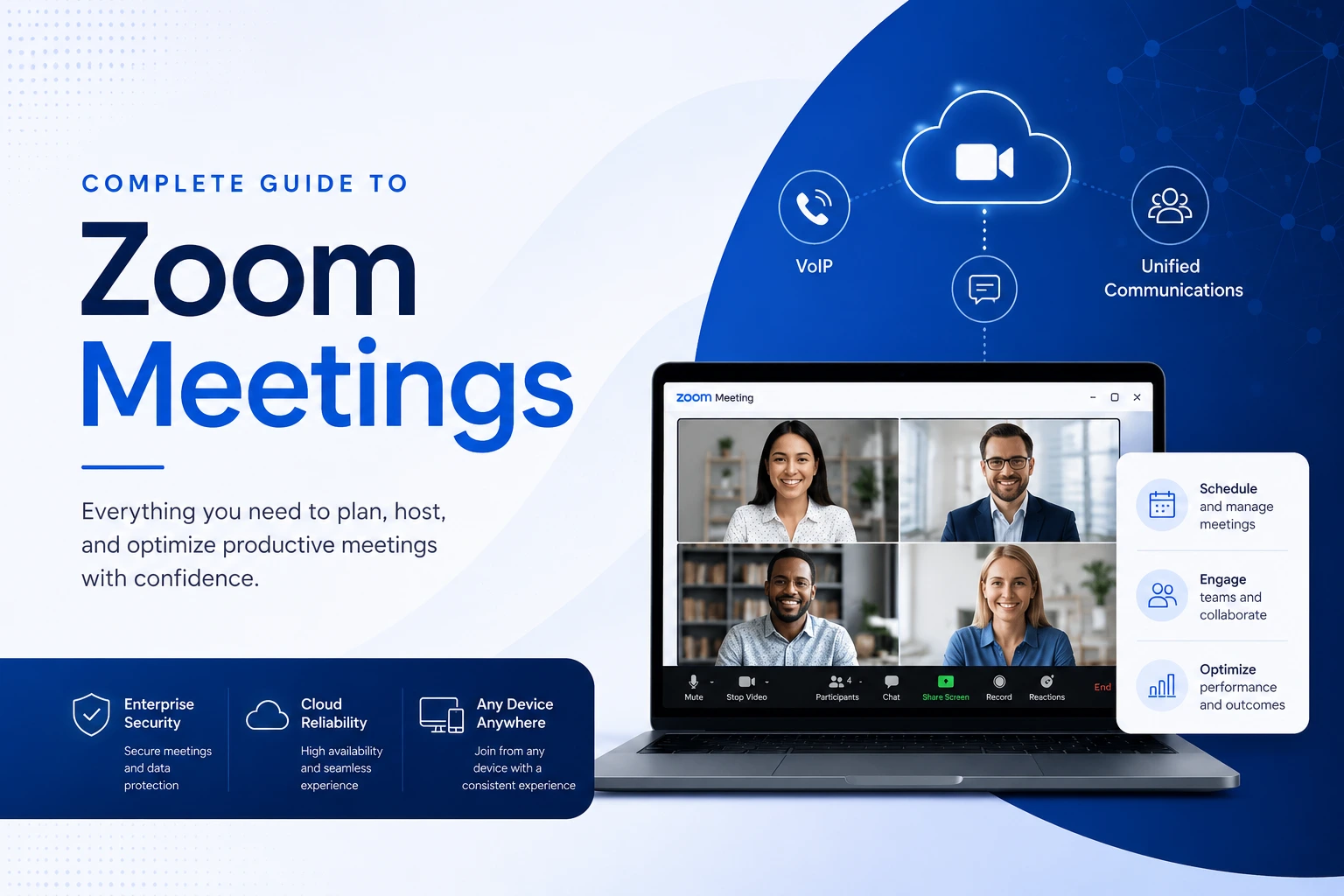
What Is a Zoom Meeting? (And Why It's Still the Gold Standard)
A Zoom meeting is a live, cloud-based video session where participants connect through audio, video, and shared content in real time. Anyone with the meeting link can join — from a Windows PC, Mac, Chromebook, iPhone, Android phone, or even a plain web browser. No complex setup, no corporate IT required.
That simplicity is what made Zoom the dominant name in video conferencing, and it's what keeps it there. In 2025, Zoom has evolved well beyond basic video calls into a full collaboration platform — Zoom Workplace — with AI-powered meeting summaries, interactive whiteboards, persistent chat, and agentic automation built in. But the meeting experience itself remains the foundation, and it's still exceptionally well-executed.
This guide covers everything: setting up your account, scheduling and hosting meetings, using Zoom's most valuable features (including the latest AI Companion 3.0 updates), securing your sessions, and running meetings that people actually want to attend.
Quick-Start: What You Need to Get Going
To join a meeting: You don't need an account. Just click the meeting link and follow the prompts to open the Zoom app or join in your browser.
To host a meeting: You need a free or paid Zoom account. Sign up at zoom.us/signup — it takes two minutes.
Free vs. paid: Zoom's free Basic plan supports unlimited 1:1 meetings and group meetings up to 100 participants with a 40-minute cap. Paid plans (starting at ~$14.16/user/month for Pro) remove time limits, unlock cloud recording, and include Zoom AI Companion at no extra charge.
Setting Up Zoom: Installation and First-Time Configuration
Step 1 — Download the App
Head to zoom.us/download and install the Zoom desktop client for Windows, Mac, or Linux. On mobile, download the Zoom app from the App Store or Google Play. The desktop client gives you the fullest experience; the mobile app covers all essentials for joining and hosting on the go.
Alternatively, you can join most Zoom meetings directly in a web browser by clicking "Join from Browser" on the meeting page — useful when you're on someone else's computer. Note that browser-based access has a slightly reduced feature set compared to the installed app.
Step 2 — Test Before Your First Meeting
Zoom provides a free test meeting at zoom.us/test that checks your camera, microphone, and speaker before you're in front of anyone. Do this before your first important call. It takes under two minutes and can save you from the classic "can everyone hear me?" panic.
While you're there, open Zoom's Settings (the gear icon in the desktop app) and:
- Select your preferred microphone and speaker
- Enable Suppress Background Noise (set to Auto or High depending on your environment)
- Choose a virtual background or blur if you want one
- Turn on HD video under Video settings if your connection supports it
Step 3 — Familiarize Yourself with the Interface
The bottom toolbar in a Zoom meeting is your control center. From left to right, you'll typically find: Mute/Unmute, Start/Stop Video, Security, Participants, Chat, Share Screen, Record, Reactions, and End. Spend five minutes clicking through these in a test meeting so they're instinctive when you need them live.
How to Schedule a Zoom Meeting
Scheduling from the Desktop App
Open Zoom and click the Schedule button (the calendar icon). Fill in:
- Meeting name — descriptive is better than "Zoom Meeting"
- Date, time, and duration
- Recurrence — for weekly standups or recurring sessions
- Meeting ID — always select Generate Automatically for public or external meetings (never use your Personal Meeting ID for these — it doesn't change, and sharing it publicly creates a security risk)
- Passcode — enabled by default; leave it on
- Waiting Room — turn this on for meetings with external participants
Click Save, then choose to add the event to Google Calendar, Outlook, or another calendar app. Zoom will automatically insert the meeting link and dial-in details into the calendar invite — ready to send to participants.
Scheduling from the Web Portal
Go to zoom.us, sign in, and navigate to My Meetings > Schedule a Meeting. The web portal gives you all the same scheduling options plus a few additional admin settings. Once scheduled, the meeting appears in your app's upcoming meetings list.
Quick Tip: zoom.new
Type zoom.new into any browser's address bar while signed into Zoom to instantly launch an impromptu meeting room. Share the link from there. It's the fastest way to start an unplanned call.
Hosting a Zoom Meeting: What You Need to Know
Before the Meeting Starts
Join your own meeting 5–10 minutes early. This gives you time to:
- Confirm your audio and video are working
- Admit expected participants from the waiting room as they arrive
- Share a welcome message in the chat (paste the agenda, a link, or a greeting)
- Set up any screens or documents you'll share
Your Host Controls
As the host, you have tools that participants don't. The key ones to know:
- Mute All: Found in the Participants panel — useful at the start when people join with background noise
- Admit from Waiting Room: You can admit attendees one at a time or all at once
- Security Button: A dedicated Security icon in the toolbar consolidates the most important meeting controls — lock the meeting, enable/disable waiting room, restrict sharing — all in one place
- Spotlight/Pin: Right-click any participant's video to spotlight them (makes their video the primary view for everyone) or pin them (just for your own view)
- Assign Co-Host: If someone else is facilitating or managing the tech, give them co-host access so they can help manage participants while you focus on content
Managing a Meeting in Progress
Keep the Participants panel open in a side window so you can see who's waiting, who has their hand raised, and who's speaking. The Raise Hand feature creates a queue — participants click it to request speaking time without interrupting, and it shows up in your Participants list so you can call on them in order.
Use the Chat panel for links, resources, and Q&A running alongside the conversation. Pinning important messages keeps them visible.
Ending the Meeting
Click End in the bottom right corner. You'll be asked whether to End Meeting for All or Leave Meeting (if you want a co-host to continue). Always choose End for All unless you're deliberately handing off to someone. Before ending, confirm any final questions, announce next steps, and remind participants about recordings or follow-ups.
Key Zoom Meeting Features Explained
HD Video and Audio
Zoom supports HD video (up to 1080p) and high-quality audio with built-in background noise suppression. The platform automatically adjusts video quality based on available bandwidth — keeping the call stable even if your connection fluctuates.
Practical settings worth knowing:
- Touch Up My Appearance: A subtle software filter in Video Settings that softens lighting on your face — less jarring than it sounds
- Video Auto-Framing: AI that keeps you centered in the frame if you move around — useful for presentations or standing desks
- Original Sound Mode: Turns off noise suppression for musicians or audio-sensitive sessions where you want the raw input
For the clearest audio, a USB headset or earbuds are significantly better than laptop speakers and a built-in mic. The difference is noticeable to everyone on the call.
Screen Sharing
Click Share Screen in the toolbar to choose what to broadcast: your entire desktop, a specific application window, a browser tab, or Zoom's built-in Whiteboard. You can also share a portion of your screen (useful for drawing attention to a specific area) or share an iPhone/iPad screen wirelessly.
While sharing, look for:
- Annotate: A toolbar that appears when you're sharing — lets you draw, highlight, add text, or stamp your screen. Other participants can annotate too if you allow it under Advanced Sharing Options
- Pause Share: Temporarily freezes what participants see while you navigate privately
- Swap Share: Instantly switch to sharing a different window without stopping and restarting
One host tip: if you're sharing a presentation, use Presenter View in your slide software while sharing the presentation window — your audience sees the slides, you see your notes.
Zoom Whiteboard
Zoom Whiteboard is a persistent, infinite digital canvas built directly into Zoom Workplace — not just an annotation layer, but a fully featured visual collaboration environment.
What you can do on Zoom Whiteboard:
- Draw freehand, add shapes and connectors, type text and sticky notes
- Upload PDFs to annotate and share during meetings
- Use 250+ pre-built templates: mind maps, flowcharts, Kanban boards, project plans, brainstorming layouts
- Embed charts, video clips, and advanced objects
- Collaborate in real time during a meeting or asynchronously between sessions — boards persist after the meeting ends
- Use AI Companion to generate a whiteboard automatically from your meeting discussion — it creates sticky note stacks and organized areas based on what's been said, without you having to stop and format
To launch the Whiteboard during a meeting: click Share Screen > Whiteboard. Outside meetings, access it from the Whiteboards button in the Zoom app.
The free plan limits you to three boards. Paid plans (Business and above) unlock unlimited persistent boards.
Breakout Rooms
Breakout Rooms let you split a large meeting into smaller simultaneous sub-groups — each with their own video, audio, and chat. Essential for workshops, classes, and any session where small-group discussion adds value.
How to use them:
- Click Breakout Rooms in the toolbar (you may need to enable this in Settings first)
- Choose the number of rooms and whether to assign participants automatically or manually
- Click Open All Rooms to send people into their groups
- As host, you can hop between rooms using the Join button — useful for checking in on groups or answering questions
- Send a broadcast message to all rooms simultaneously if needed
- Click Close All Rooms when time is up — participants get a 60-second warning and return to the main session automatically
Pro tip: before sending people in, give clear instructions on what each group should accomplish and how long they have. When everyone returns, go room by room for a quick debrief.
Chat
The in-meeting Chat panel (click the Chat icon) lets participants send messages to everyone or privately to specific individuals. Use it for:
- Sharing links, resources, or references during a presentation
- Running a parallel Q&A thread while the presenter continues speaking
- Dropping a quick note without interrupting
As host, you can restrict chat settings: allow messaging to everyone, to hosts only, or disable it entirely for high-security or focused sessions.
After the meeting, Zoom can save the chat transcript automatically — useful for capturing follow-up actions or resource links shared during the discussion.
Polls
Polls let you ask the group a quick multiple-choice question and see real-time results. They work well for pulse checks, decisions, icebreakers, and keeping attention in longer sessions.
Set up polls in advance through the Zoom web portal before the meeting (My Meetings > your meeting > Add Poll) — or launch them spontaneously during the session if you've pre-created them. Results can be shown to all participants or kept private for the host.
For more advanced polling with word clouds, open-text responses, and Q&A queues, Zoom integrates with Mentimeter and Slido, both available through the Zoom App Marketplace.
Recording and Live Transcription
Recording: Click Record in the toolbar to capture the meeting. Two options:
- Local Recording: Saves directly to your device after the meeting ends (free plan)
- Cloud Recording: Saves to Zoom's cloud storage for easy sharing via link (paid plans)
Zoom will announce to participants that recording has started — this is intentional and required. When the meeting ends, cloud recordings are processed and available in your Zoom portal within minutes. You can set access permissions on each recording before sharing.
Live Transcription: When the host enables it, Zoom generates real-time captions visible to all participants. Click View Full Transcript to see the running text in a side panel and save it at the end. Live transcription requires a paid plan and must be enabled by the host in meeting settings.
Both features are significantly more useful with Zoom AI Companion (covered below), which turns raw transcripts into actionable meeting summaries automatically.
Reactions and Nonverbal Feedback
The Reactions button gives participants a set of emoji responses (thumbs-up, clapping, raised hand, and more) that appear briefly on their video tile — a way to give feedback without interrupting the speaker. Zoom also supports gesture recognition: make a physical thumbs-up toward your camera and Zoom will trigger the thumbs-up emoji automatically.
Raise Hand is the most useful nonverbal tool for structured meetings. When a participant clicks it, a hand icon appears next to their name in the Participants list, visible to the host, in the order hands were raised. This creates a natural speaking queue without crosstalk.
Zoom AI Companion 3.0: The 2025 Update That Changes Everything
Zoom AI Companion has grown from a note-taking assistant into something significantly more capable. Here's what it does now — and what matters most in a meeting context.
During the Meeting
- Real-time transcription with speaker attribution runs automatically (when enabled)
- Smart captions keep the conversation accessible
- "Prepare me for this meeting": Before a scheduled meeting, AI Companion proactively briefs you on the agenda, previous action items from past meetings on the same topic, and key context — so you walk in prepared without reviewing notes manually
- Whiteboard generation: Ask AI Companion to generate a whiteboard from the current discussion — it creates organized sticky notes and layout areas based on what's been said, in real time
After the Meeting
- Meeting summary and action items delivered automatically to the Zoom Chat thread for that meeting
- "What was decided?" queries: Ask AI Companion anything about the meeting content via chat, and it searches the transcript to answer
- Document generation: AI Companion can draft follow-up emails, internal reports, or planning documents using the meeting transcript as source material — exported in PDF, Word, Markdown, or Zoom Docs format
- Agentic task execution: Connect to 16+ enterprise apps (Asana, ServiceNow, Google Drive, Microsoft OneDrive) and let AI Companion create tasks, update records, or pull relevant documents without manual steps
Cross-Platform Reach
AI Companion 3.0 can now generate meeting summaries for Microsoft Teams and Google Meet sessions as well — not just Zoom meetings. For organizations running multiple video platforms, this creates a unified knowledge base regardless of where a meeting happened.
Availability: Zoom AI Companion is included at no extra cost with all paid Zoom Workplace plans. The Custom AI Companion add-on provides additional deep research and organization-specific customization for enterprise customers.
Security Settings Every Host Should Know
Meeting security is mostly set before the meeting starts — and the basics take under a minute to configure.
The Essential Three
1. Use a Passcode Passcodes are embedded in Zoom meeting links, so participants clicking a link never notice them. If someone tries to join by manually entering a Meeting ID, they'll need the passcode. Always keep this enabled. Per Zoom's official guidance, every meeting should be protected by at least a passcode, a waiting room, or both — and combining them provides stronger protection.
2. Enable the Waiting Room The Waiting Room places participants in a virtual lobby until you admit them. You can admit everyone at once or one by one. For external meetings or any session with participants you haven't verified, the Waiting Room is your first line of defense against uninvited guests. You can customize the Waiting Room screen with a message, your company name, or logo.
3. Always Generate a Random Meeting ID Your Personal Meeting ID (PMI) never changes — which means if you share it publicly, it's a permanent open door. For any meeting with external participants or a public audience, always schedule with a randomly generated Meeting ID.
Additional Controls Worth Using
- Lock the Meeting: Once all expected participants have joined, lock the meeting (Security button > Lock Meeting) to prevent anyone else from entering — even with the link
- Restrict Screen Sharing: Change sharing permissions so only the host can share by default. Under Advanced Sharing Options, set "Who can share?" to "Host Only"
- Remove Participants: Right-click any participant's video and select Remove. Removed participants can't rejoin unless you explicitly allow it
- Disable Private Chat: In the Chat settings, prevent participants from messaging each other privately if it's a sensitive or structured session
- Require Authentication: For internal meetings, require participants to be signed into Zoom with a verified email domain — this automatically bypasses the waiting room for known users while blocking unverified outsiders
The Security button in the in-meeting toolbar consolidates all of these controls in one place. It's the fastest way to lock down a meeting that's already underway.
Best Practices: Running a Meeting People Actually Want to Attend
Before You Start
Prepare your tech. Test audio, video, and screen sharing at zoom.us/test. Close browser tabs and applications you won't need — this frees bandwidth and removes accidental screen-sharing risk.
Share an agenda. Drop it in the calendar invite or the meeting chat before people join. Meetings with no stated purpose tend to run long and accomplish less. Even a three-item agenda sets expectations and keeps discussion on track.
Assign a co-host. For meetings with 10+ participants, having someone manage the participants panel (admit from waiting room, manage raised hands, moderate chat) frees you to focus on facilitation.
During the Meeting
Start on time. Waiting for stragglers signals that being late is acceptable. Begin with what you have; latecomers can catch up.
Mute when you're not speaking. This is the single most impactful audio habit in any video meeting. Background noise — keyboard clicks, ambient sound, dogs — is amplified on calls in a way that doesn't happen in physical rooms. If you have background noise, mute yourself between turns.
Use video when you can. Having cameras on makes conversations more natural and keeps people engaged. If your bandwidth is limited, turning off video prioritizes audio quality — which matters more.
Manage speaking turns actively. Use the Raise Hand feature to create a queue. Call on specific people rather than opening the floor broadly in large groups — "open floor" questions in a 20-person call produce silence, not discussion.
Use the chat for parallel value. Drop links, references, and follow-up resources in chat as they come up in conversation. It becomes a useful record of what was discussed without interrupting the flow.
After the Meeting
Send a follow-up summary. If Zoom AI Companion is enabled, it generates this automatically — delivered to the meeting's Zoom Chat thread. For participants who weren't in the room or prefer email, a brief summary with decisions and action items keeps everyone aligned.
Review the recording. If you recorded the session, review the first few minutes to confirm the recording captured what you intended and the audio is usable. Share the link promptly — value of a meeting recording decreases quickly as the content ages.
Act on action items. Meetings that generate to-do lists but no follow-through erode trust in the meeting format. Assign clear owners and deadlines for any actions discussed, and check in on them before the next session.
AI Companion is included with Pro and above at no additional charge — this is Zoom's most significant pricing advantage over competitors like Microsoft Teams (where Copilot adds $30/user/month) or Slack (where advanced AI requires Business+ at $15/user/month).